TachoAssist Business

TachoAssist Business tutorials

The everyday tasks of a transport company in TachoAssist, screen by screen, on a computer and on a phone.

On a computer

  1. First file: the country and the upload4 steps
  2. Card reader for Windows5 steps
  3. Android: Card Reader over USB and Bluetooth (beta)6 steps
  4. Drivers, tabs and groups4 steps
  5. Driver infringement report4 steps
  6. A report for several drivers or a group4 steps
  7. Fill in work time: leave, sickness, a day off4 steps
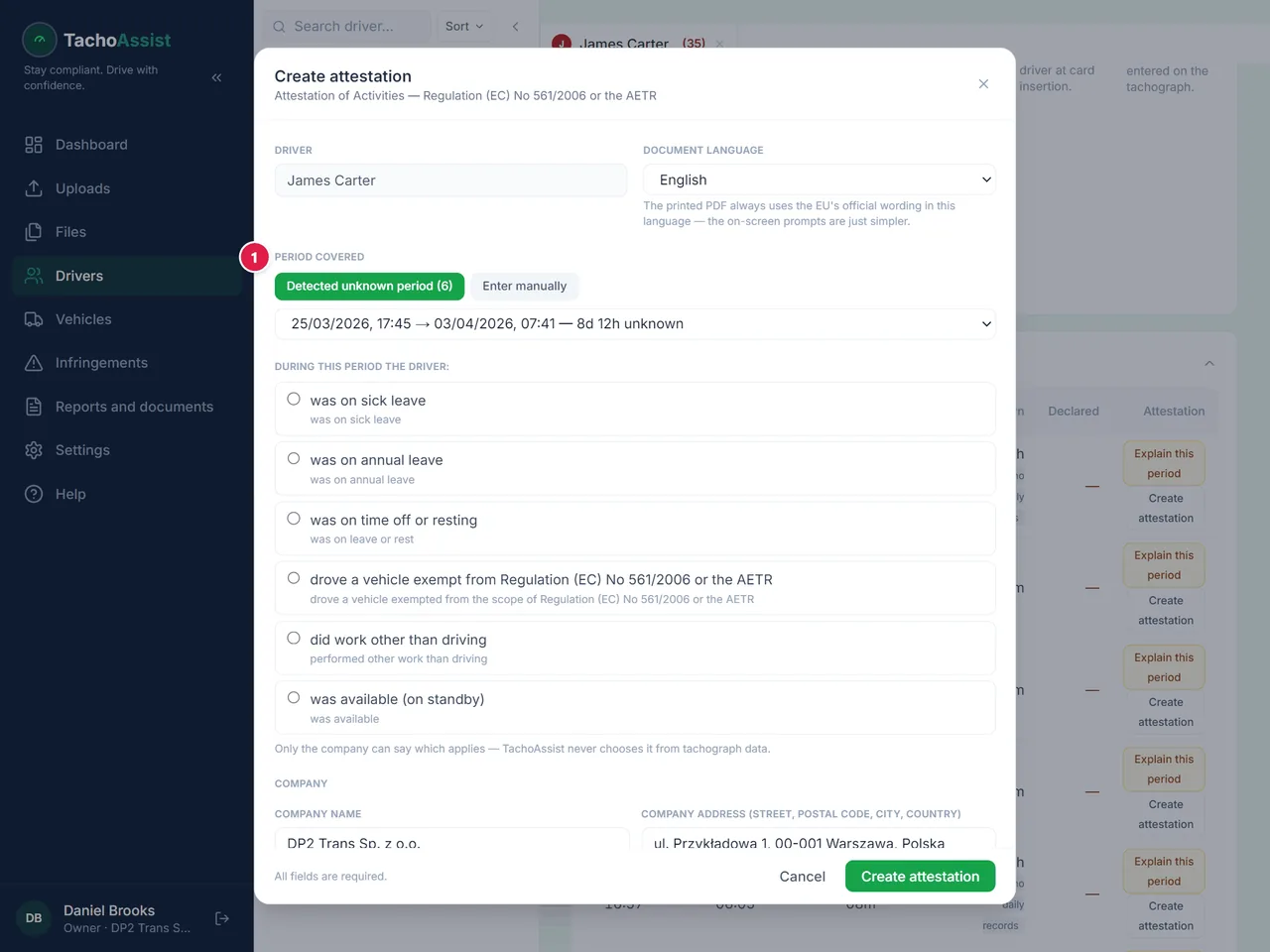
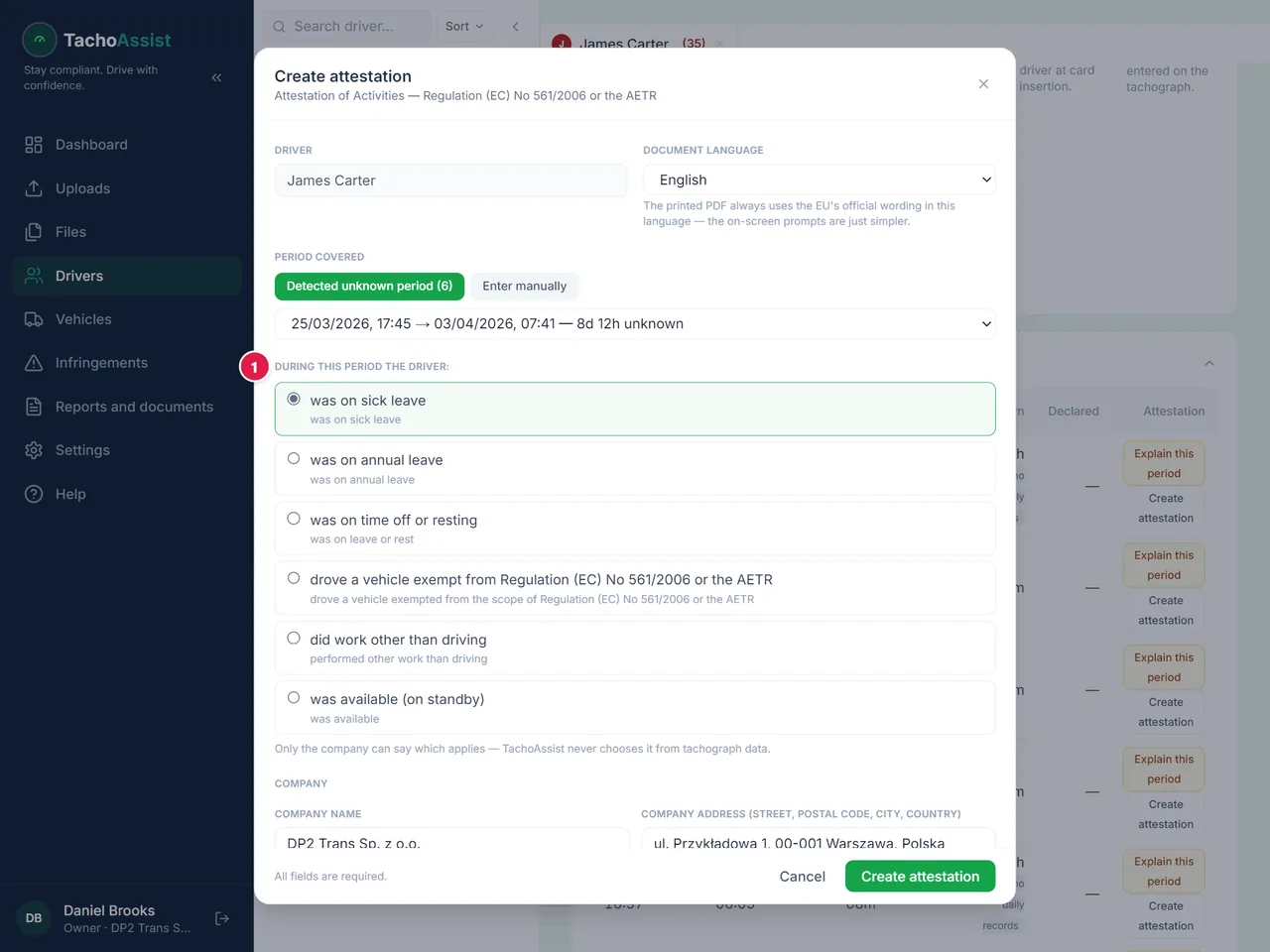
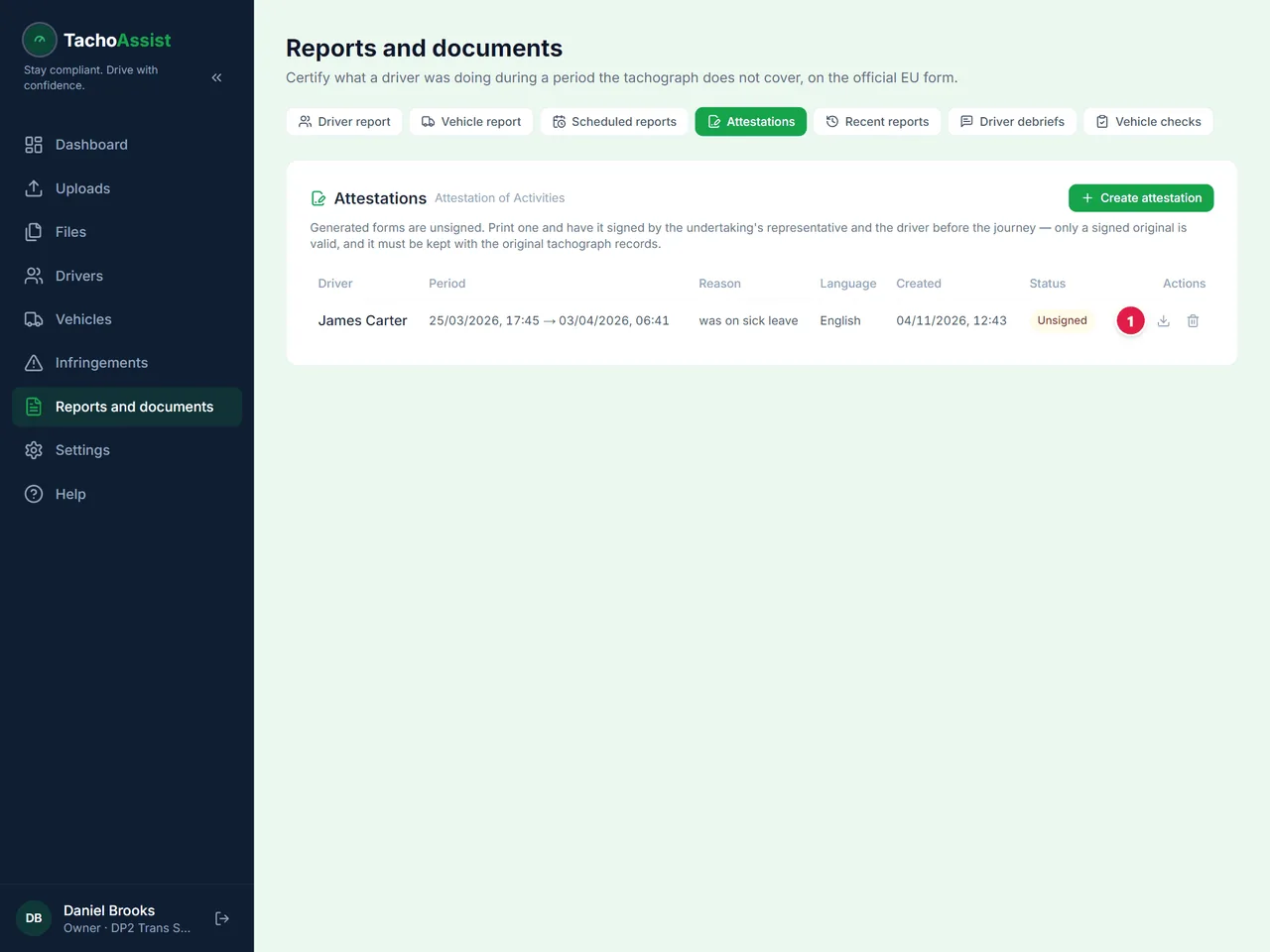
  8. A period with no data: the attestation of activities4 steps

First file: the country and the upload

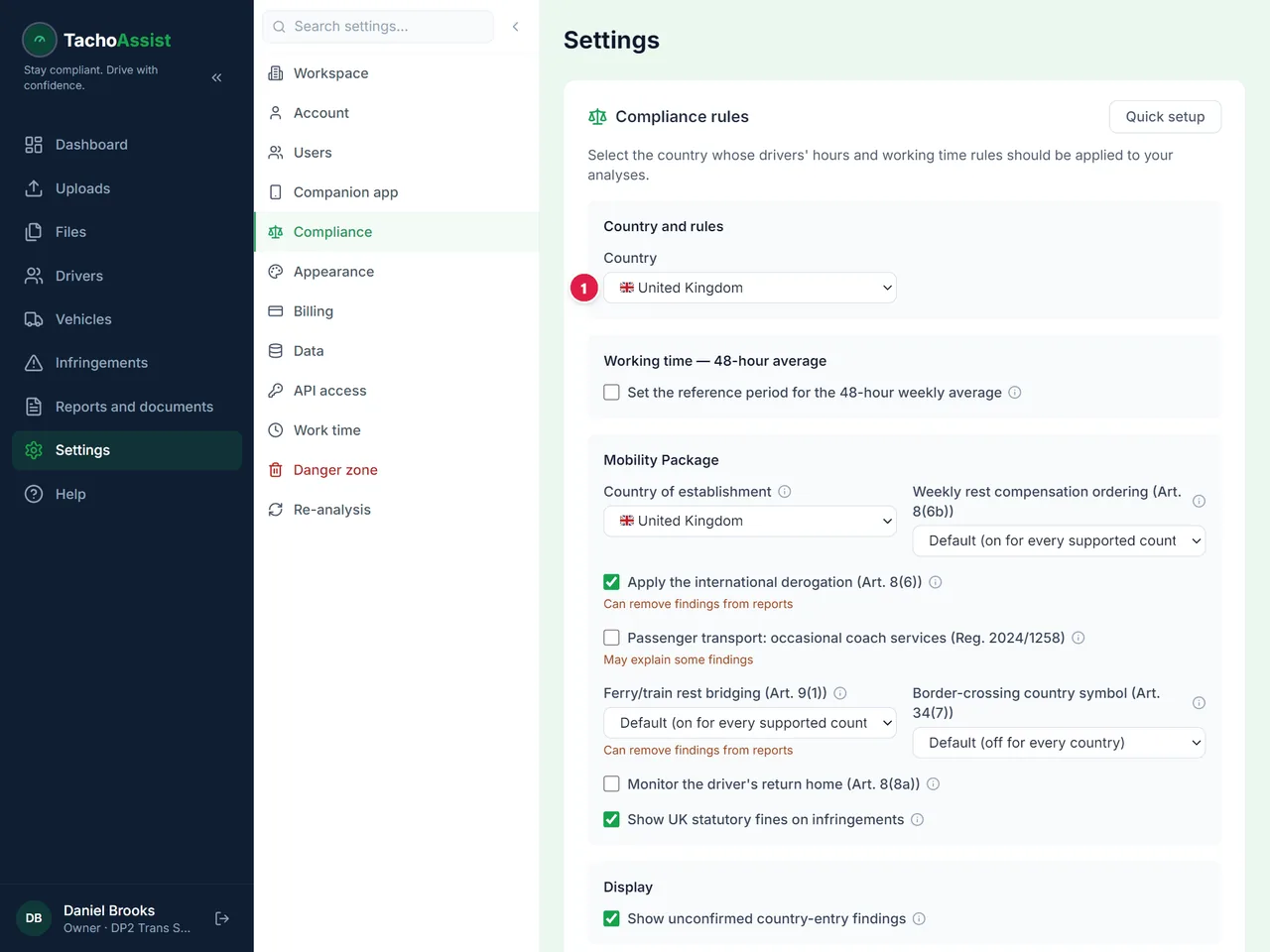
  1. Set the country once

    Set the country once

    Choose the country whose rules apply to your drivers. Nothing is analysed until a country is set.

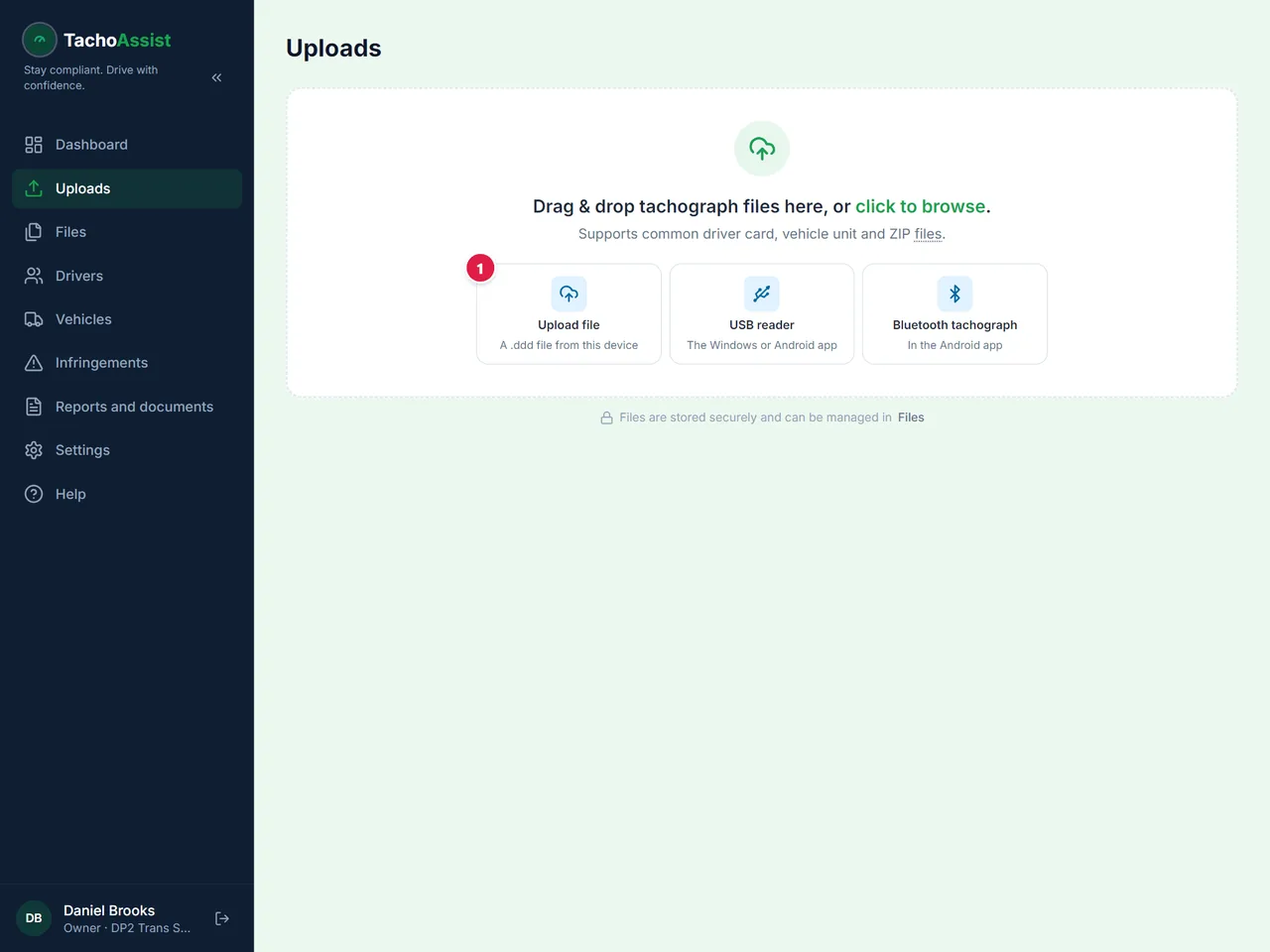
  2. Add the files

    Add the files

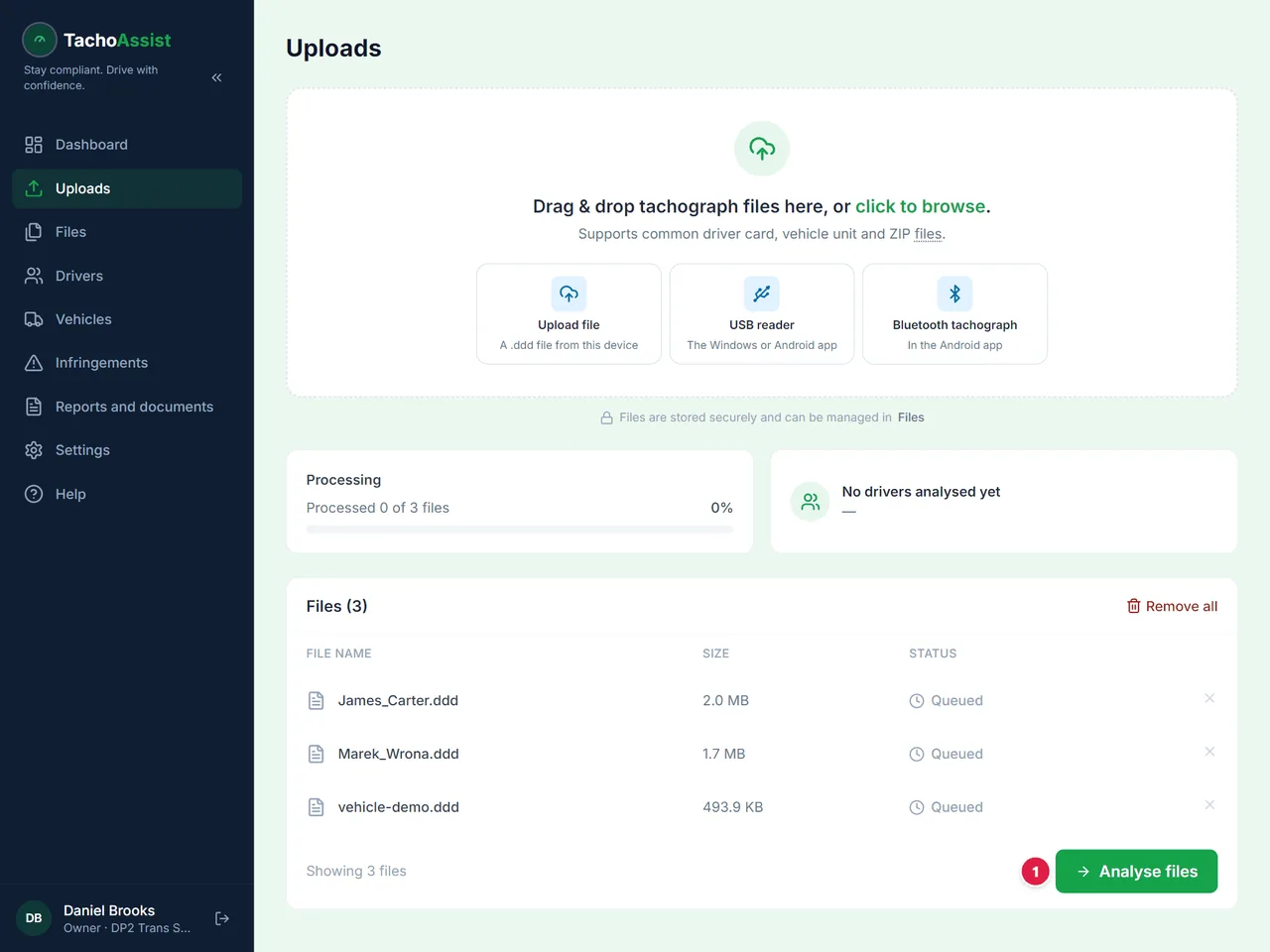
    Pick the drivers’ and vehicles’ .ddd files, or a ZIP of them. You can also drag them onto the page.

  3. Start the analysis

    Start the analysis

    Check the list of files and start the analysis.

  4. Open the results

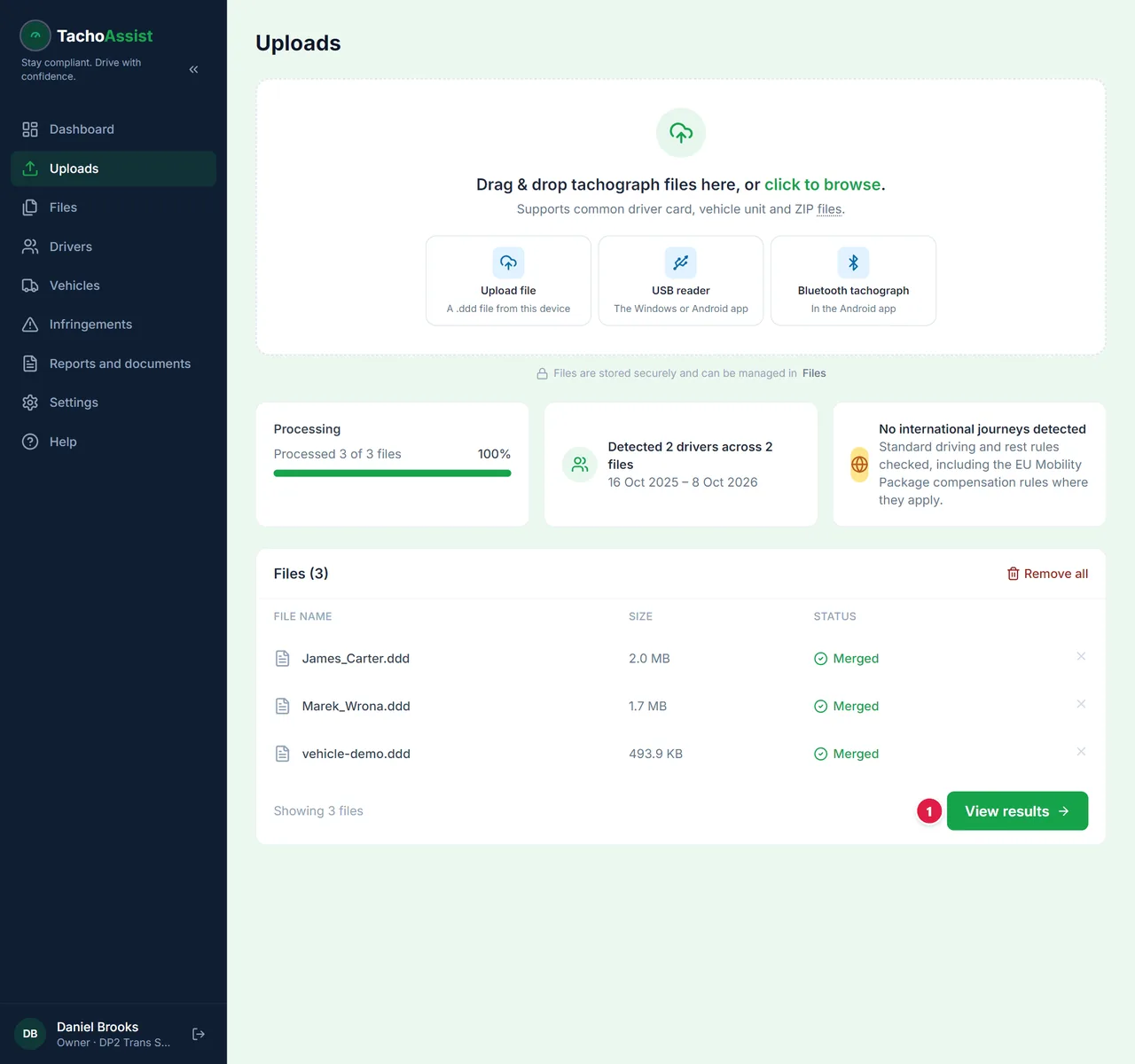
    Open the results

    The drivers and vehicles from the files are now on their lists.

Upload vehicle unit (VU) files the same way — you will find them under Vehicles.

Card reader for Windows

  1. Install the free app

    Install TachoAssist Card Reader from the Microsoft Store. Or download the ZIP: there is no installer, you unzip it and run the app.

  2. Sign in

    Sign in

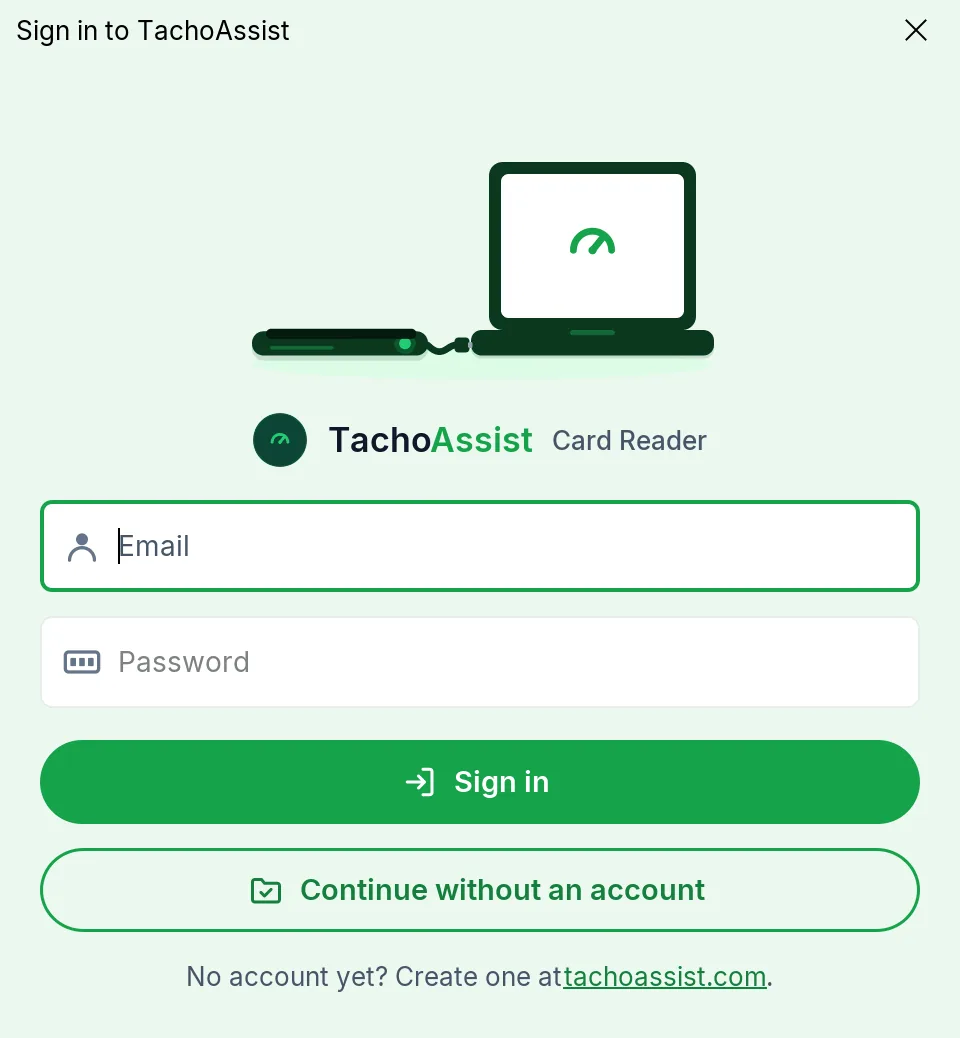
    Sign in with the same account you use in the browser.

  3. Insert the card

    Insert the card

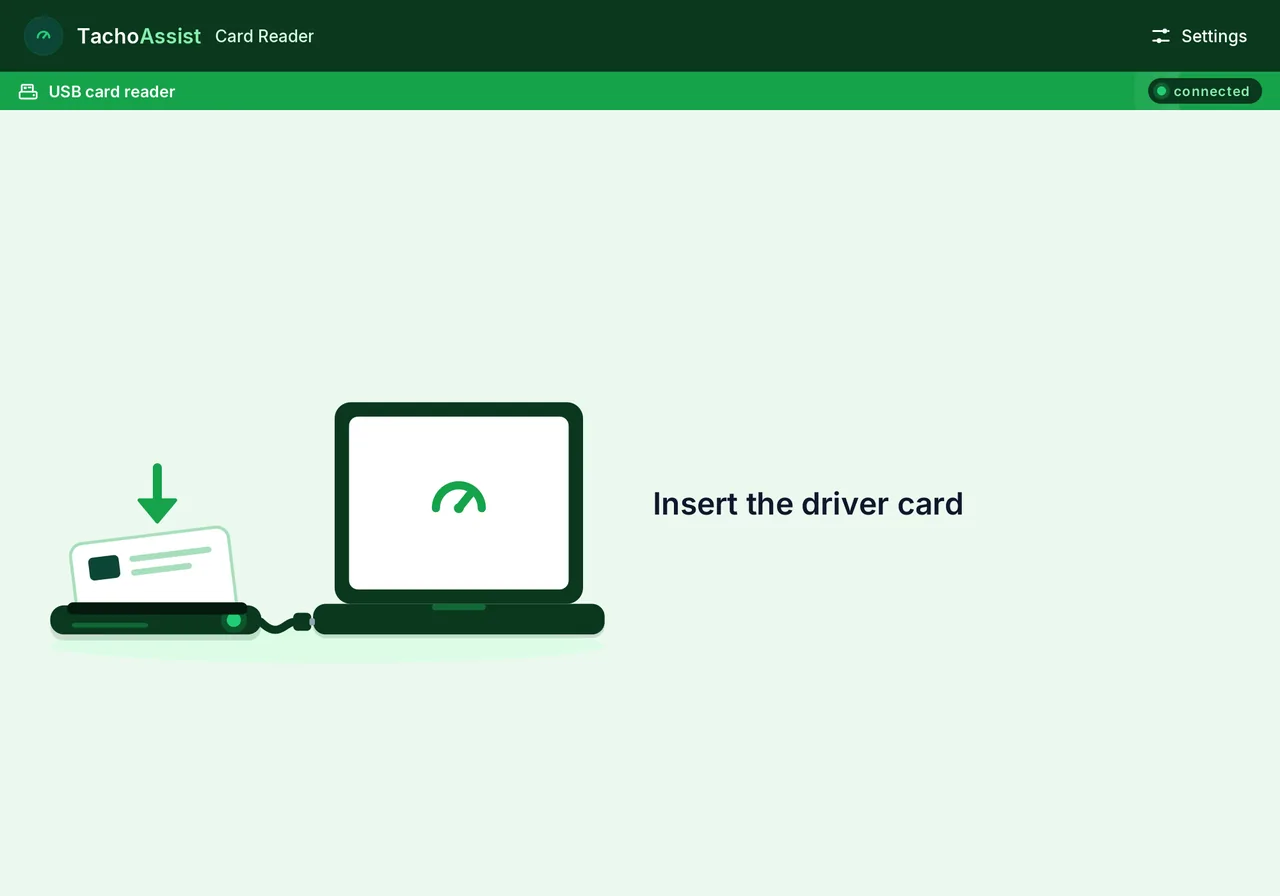
    Plug in a USB smart-card reader and insert the driver card. Reading starts by itself.

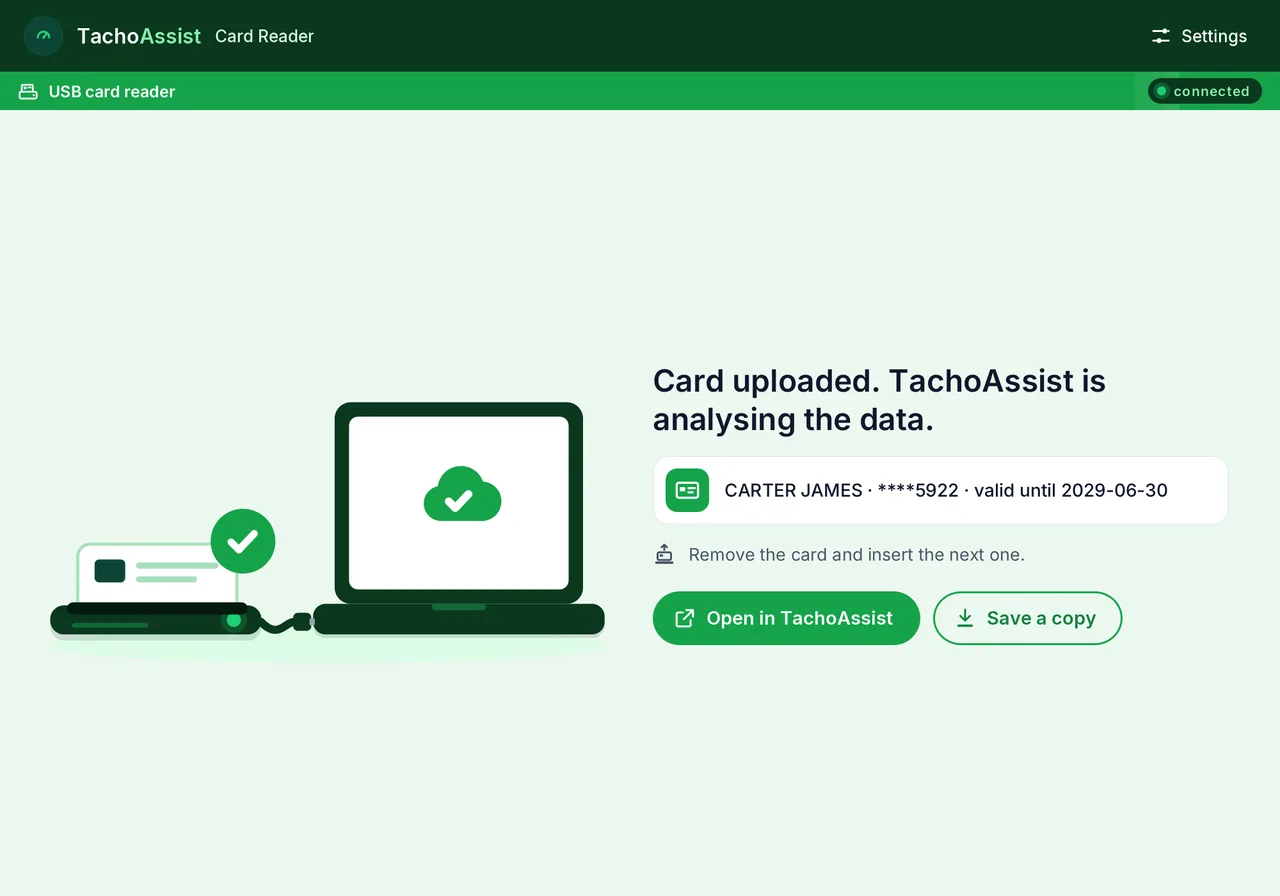
  4. The file is in your account

    The file is in your account

    The file goes to TachoAssist on its own. Take the card out and insert the next one.

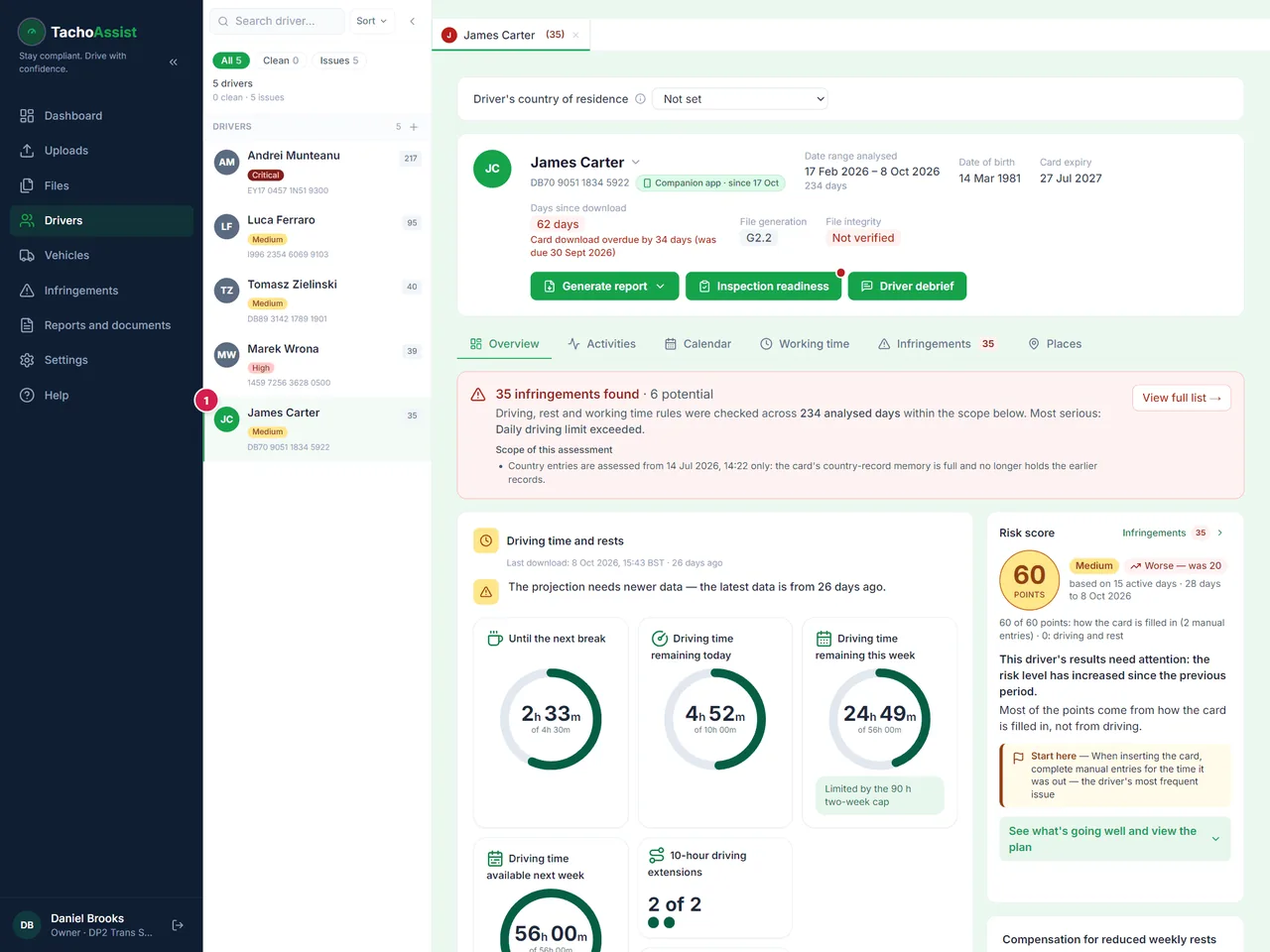
  5. Find the driver

    Find the driver

    The driver is on the list, already analysed.

Android: Card Reader over USB and Bluetooth (beta)

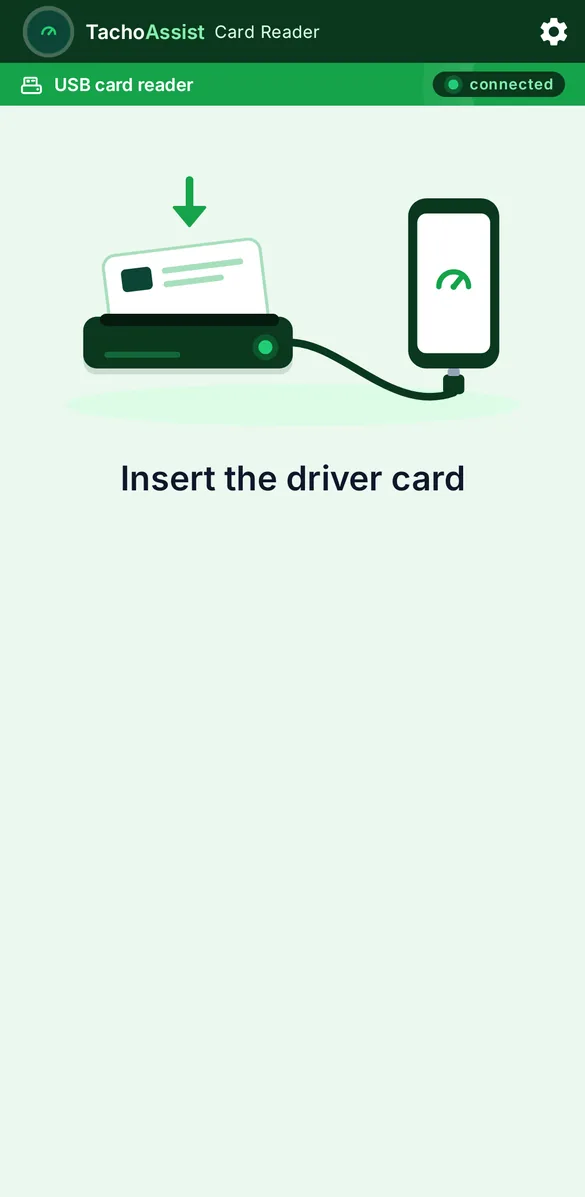
  1. Read a card over USB

    Read a card over USB

    Connect the USB reader to the phone (an OTG adapter works) and insert the driver card.

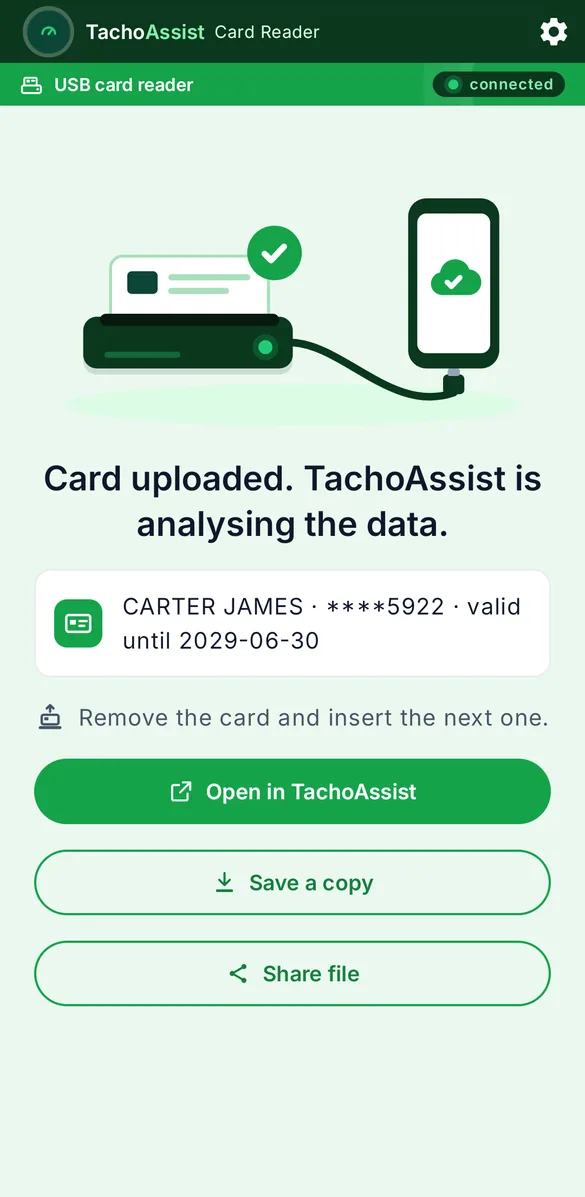
  2. Uploaded

    Uploaded

    The file is already in TachoAssist.

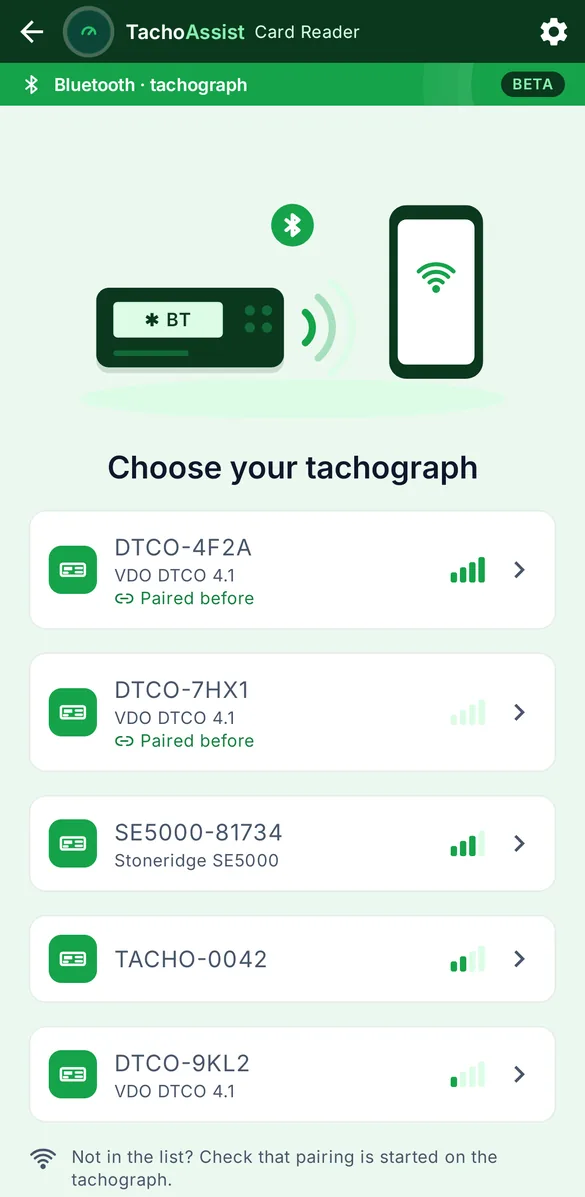
  3. Bluetooth: find the tachograph

    Bluetooth: find the tachograph

    Start pairing on the tachograph and pick it from the list. It works with smart tachographs that print “GEN2 v2”.

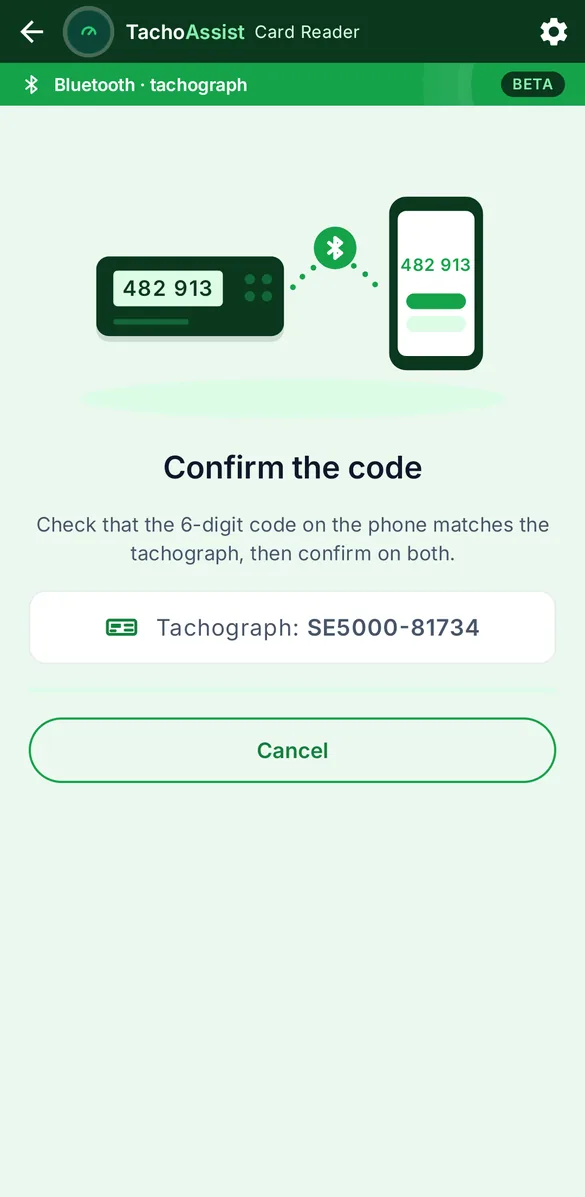
  4. Confirm the code

    Confirm the code

    Check that the 6-digit code is the same on both screens and confirm on both.

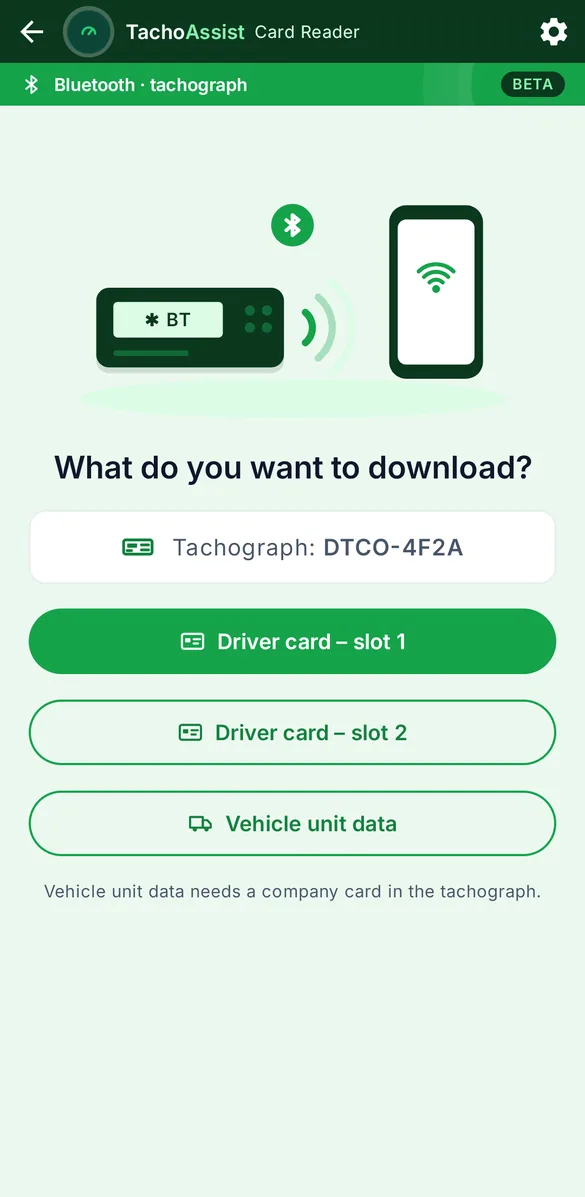
  5. Choose what to download

    Choose what to download

    Vehicle unit data needs a company card in the tachograph.

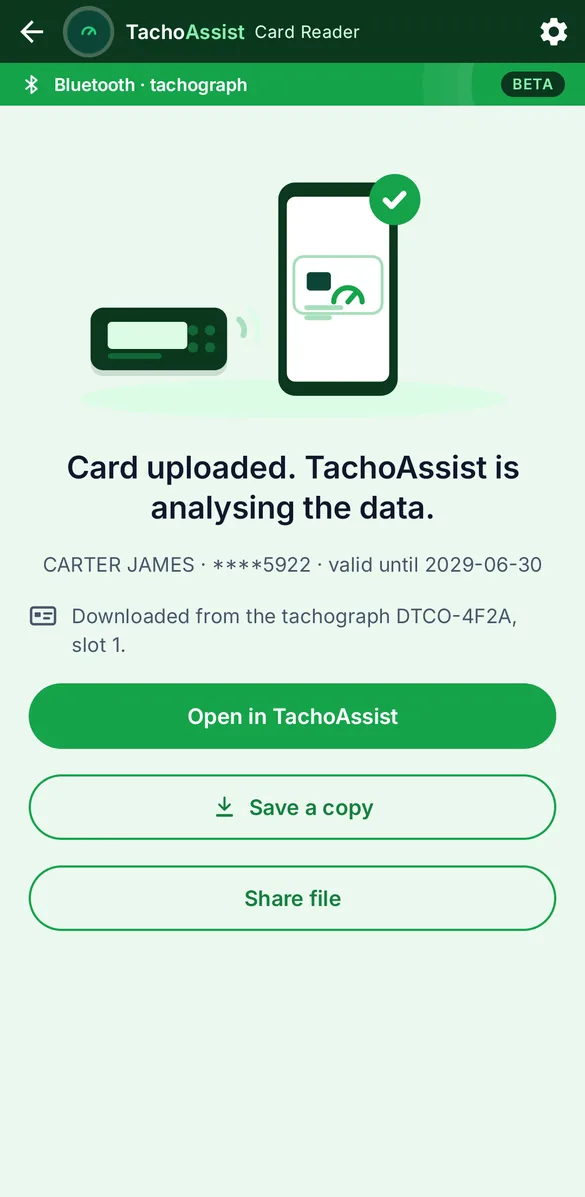
  6. Done

    Done

    The file is in TachoAssist and the analysis starts.

Drivers, tabs and groups

  1. Open a driver

    Open a driver

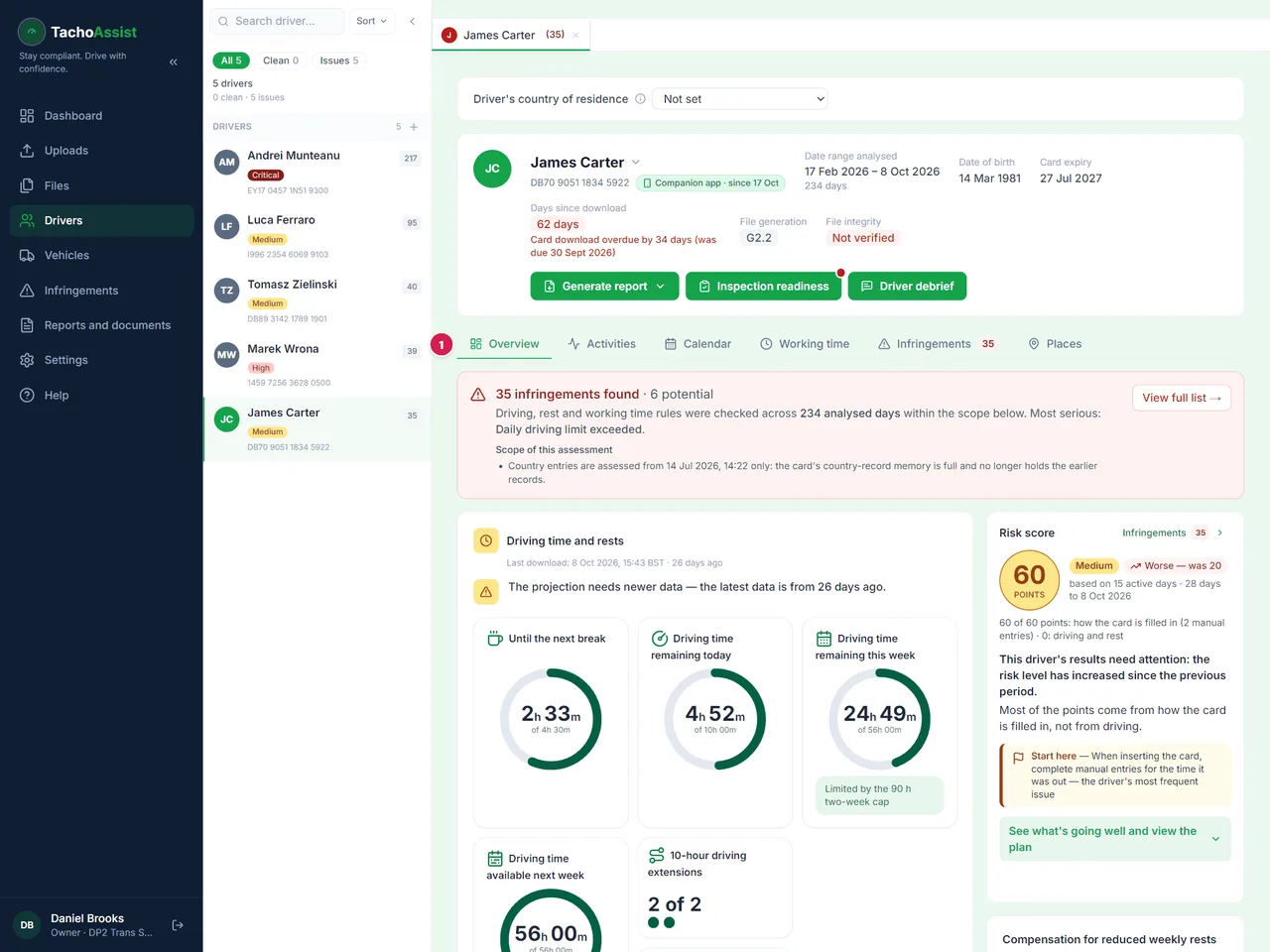
    Click a driver — they open in a tab of their own.

  2. Six sub-tabs

    Six sub-tabs

    Each sub-tab answers one question about the driver.

  3. The calendar

    The calendar

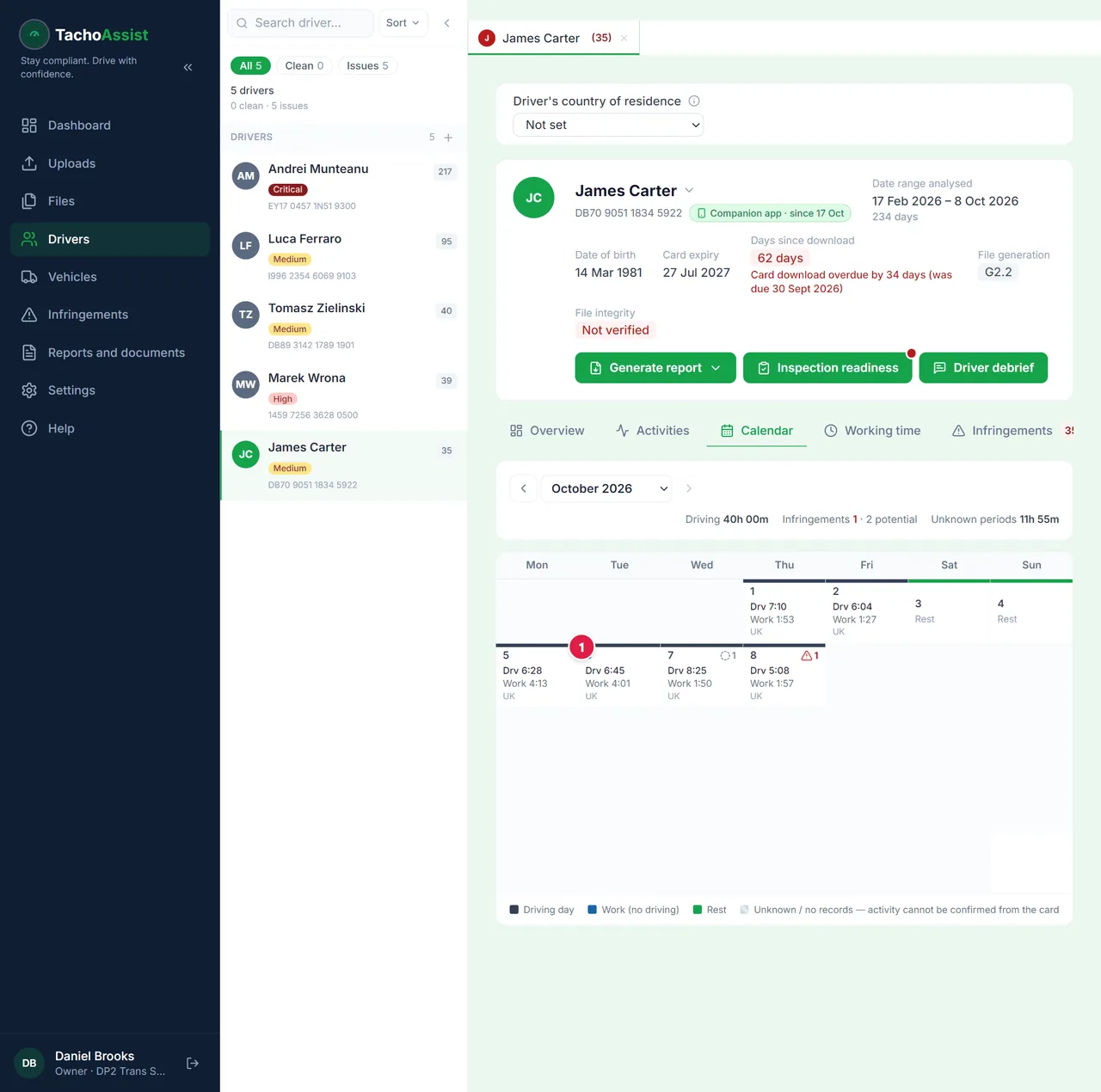
    The month in activity colours. Click a day to see it in detail.

  4. Groups

    Groups

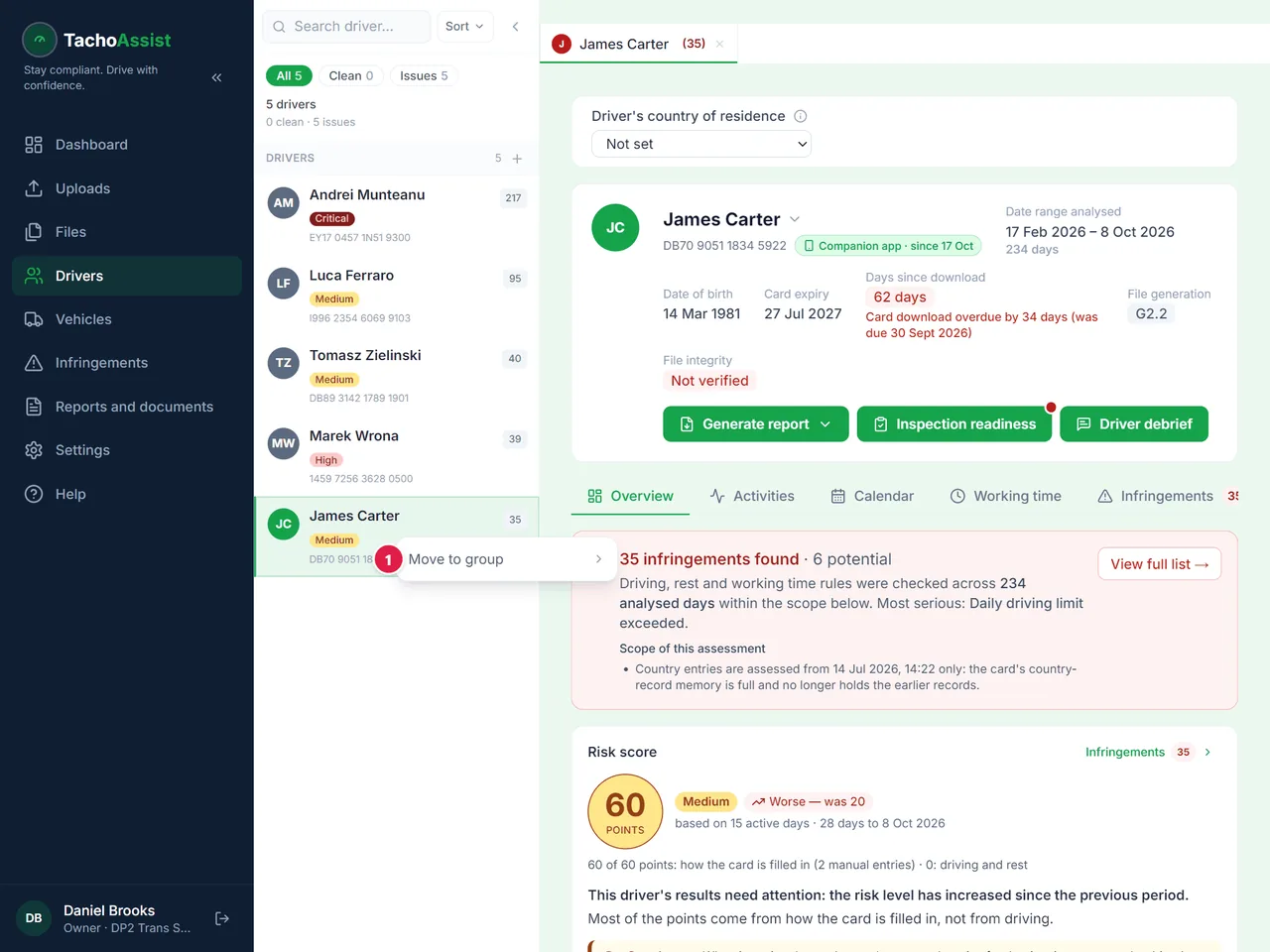
    Right-click the list to add a group or move drivers into one. Groups keep the list and the reports in order.

Vehicles work the same way.

Driver infringement report

  1. Open the report menu

    Open the report menu

    Open the driver and the menu in their header.

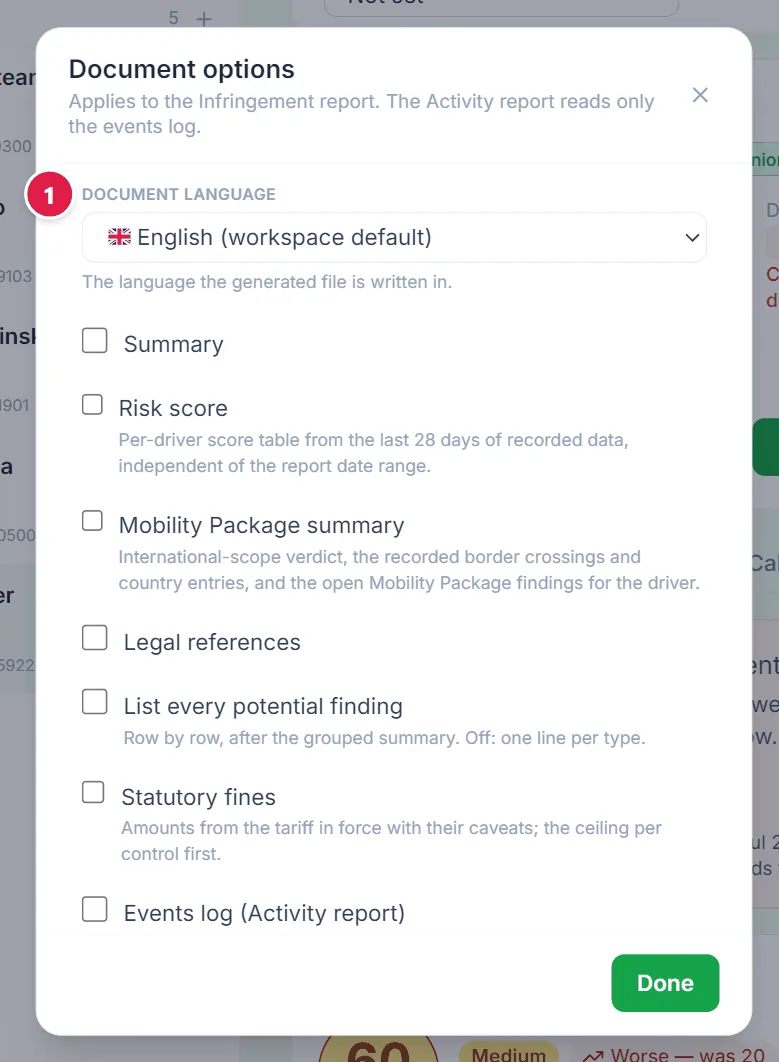
  2. Language and sections (optional)

    Language and sections (optional)

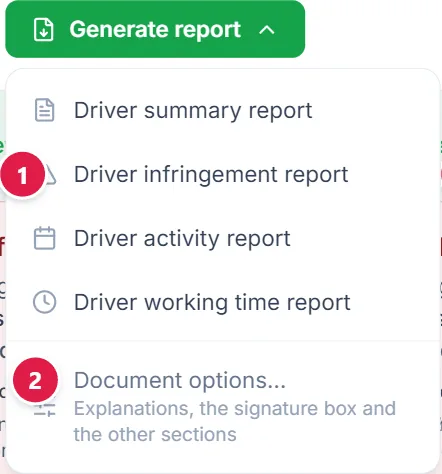
    Choose the document language for every report from this menu, and the extra sections of the infringement report.

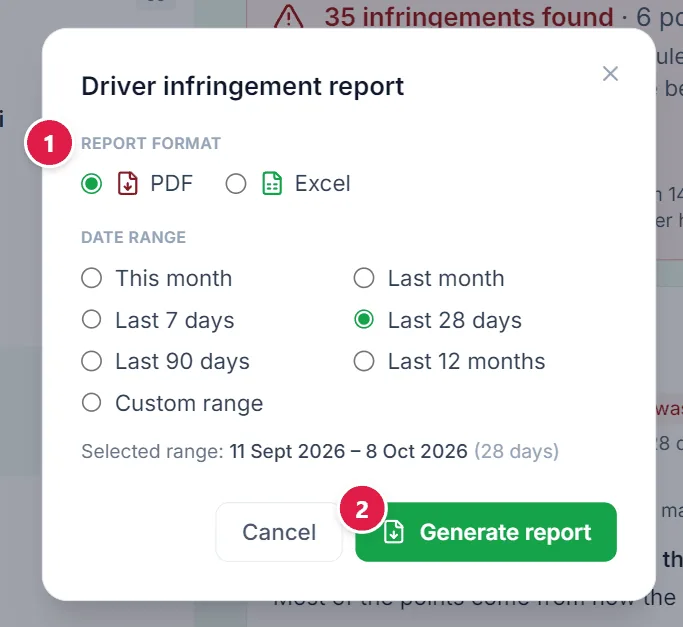
  3. Choose the report

    Choose the report

    Pick the report, then PDF or Excel and the period.

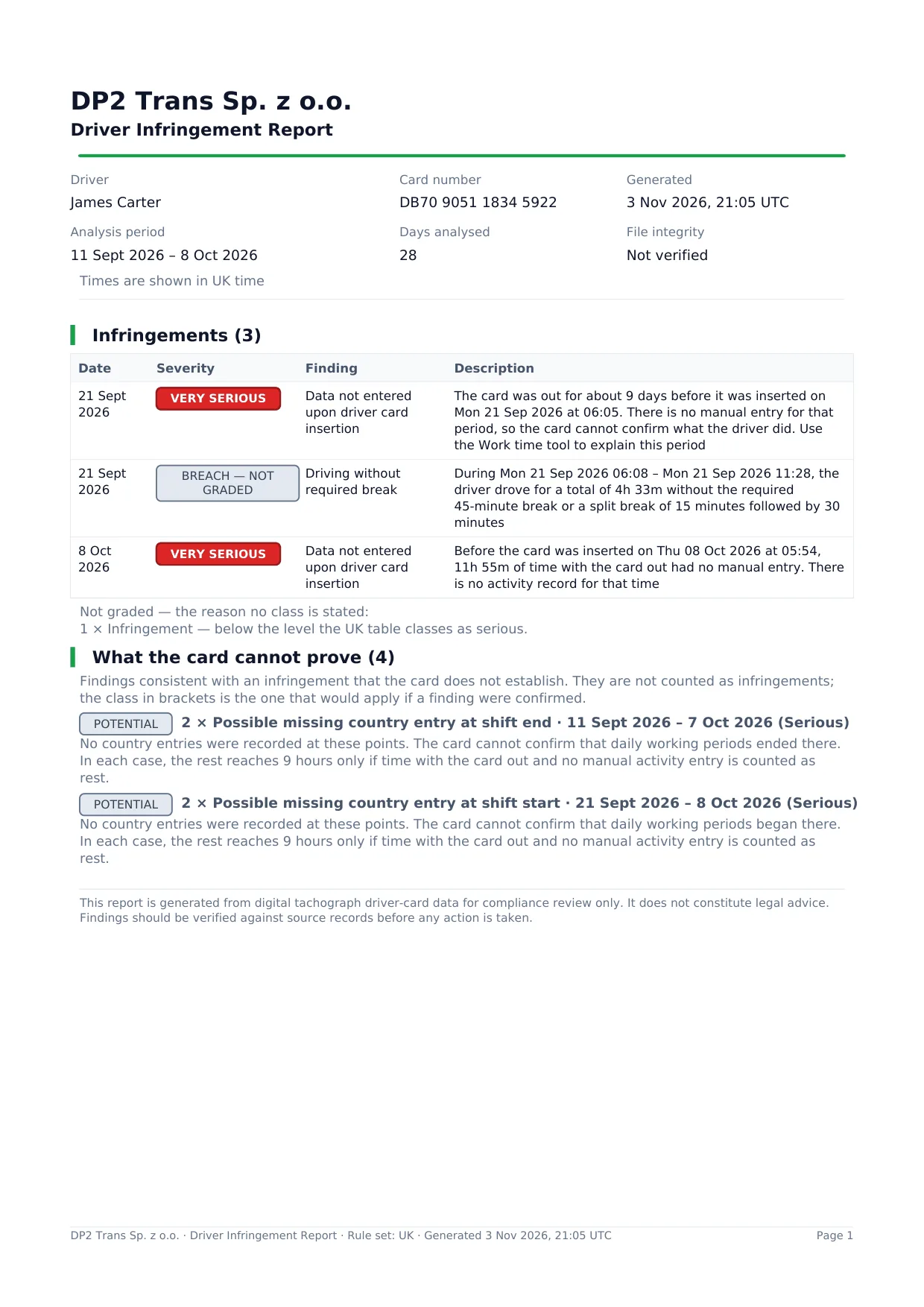
  4. Generate

    Generate

    The finished document is also kept in Recent reports.

The activity, summary and working time reports work the same way. In the activity report, tick “Time by country and activity log” to add them to the PDF; the Excel file always has them.

A report for several drivers or a group

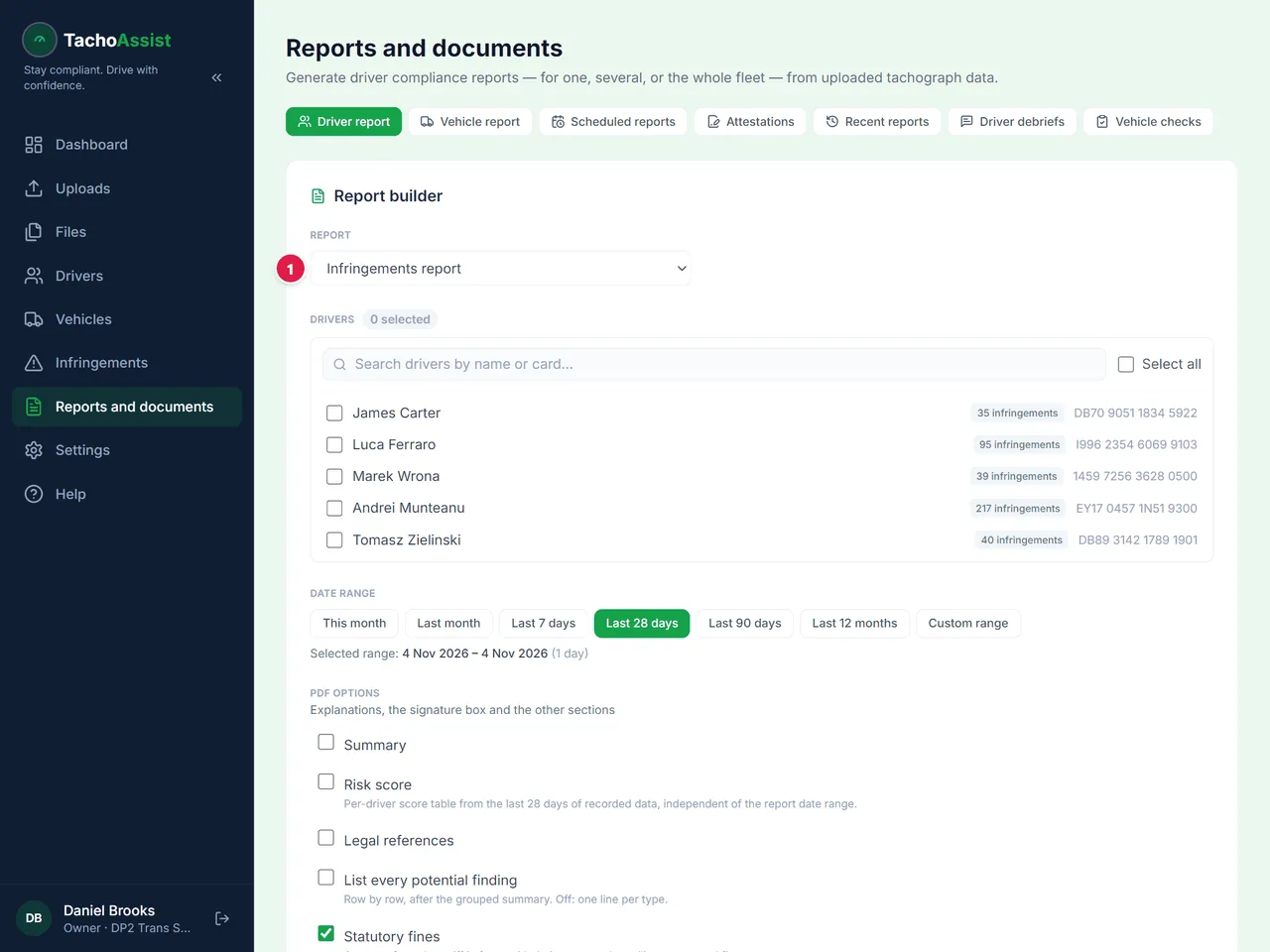
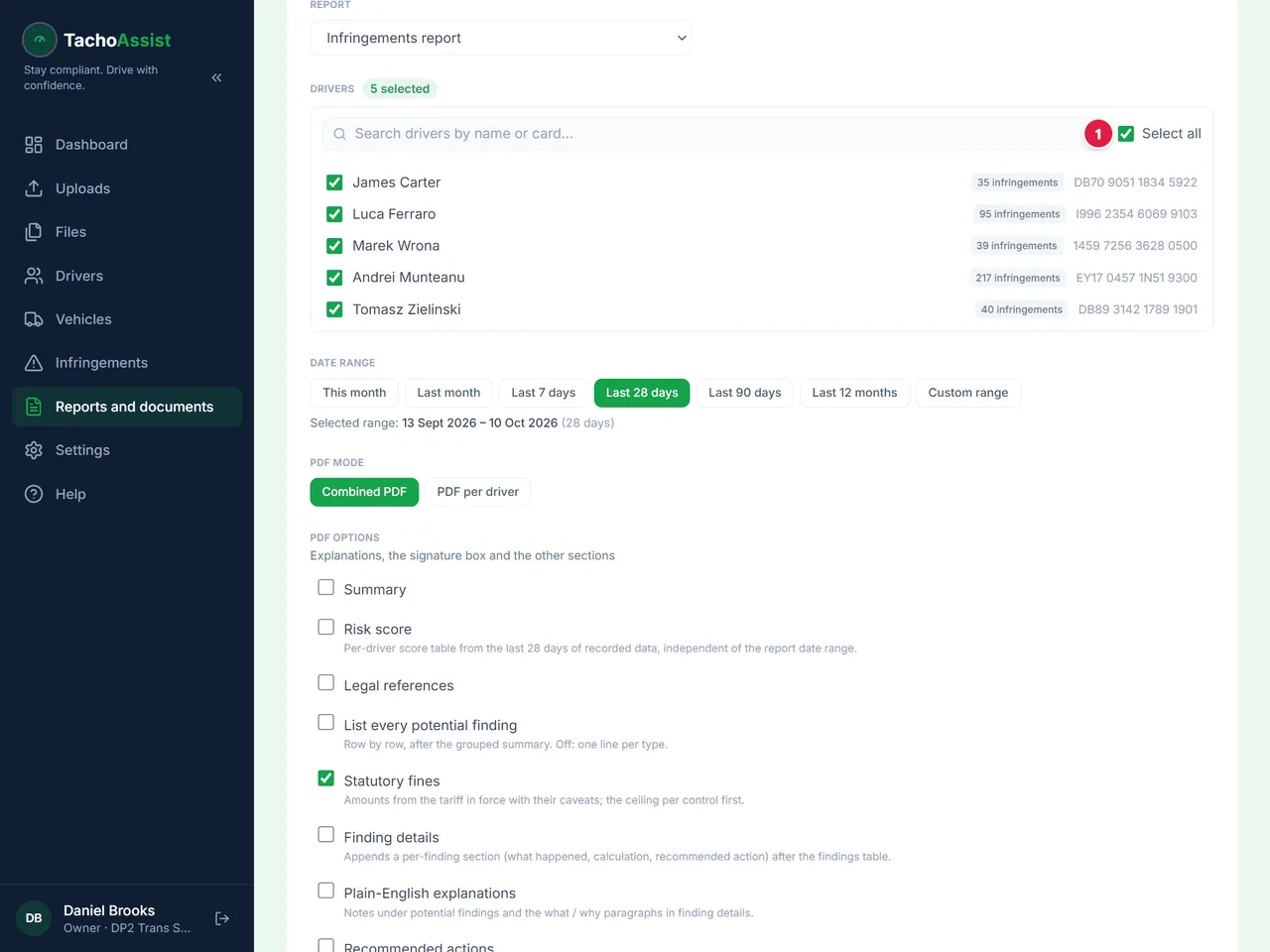
  1. Choose the report type

    Choose the report type

    Pick the report from the list, for example the Infringements report.

  2. Drivers and dates

    Drivers and dates

    Tick the drivers or choose a group, then set the period.

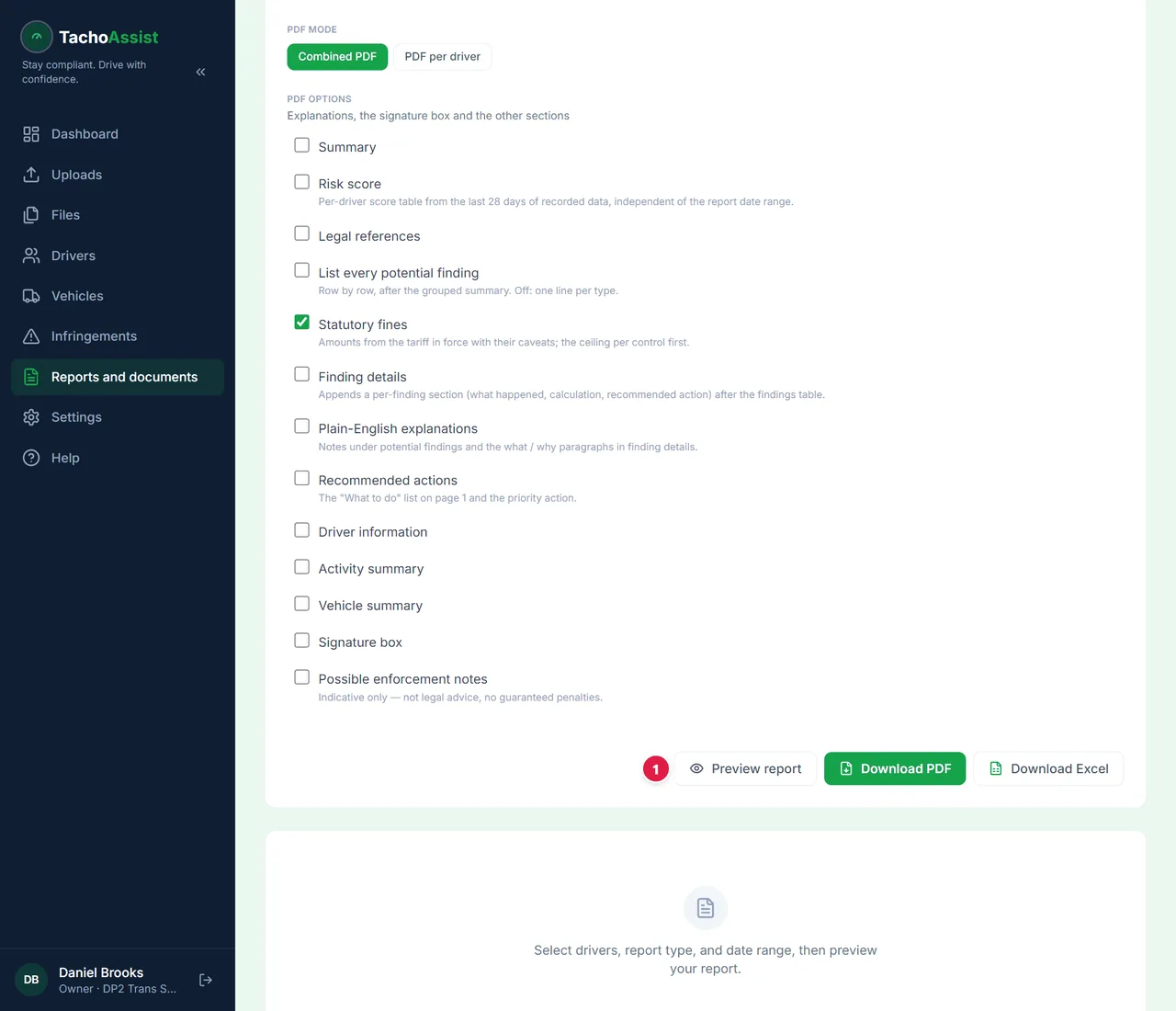
  3. Preview or download

    Preview or download

    Preview the report before you download it.

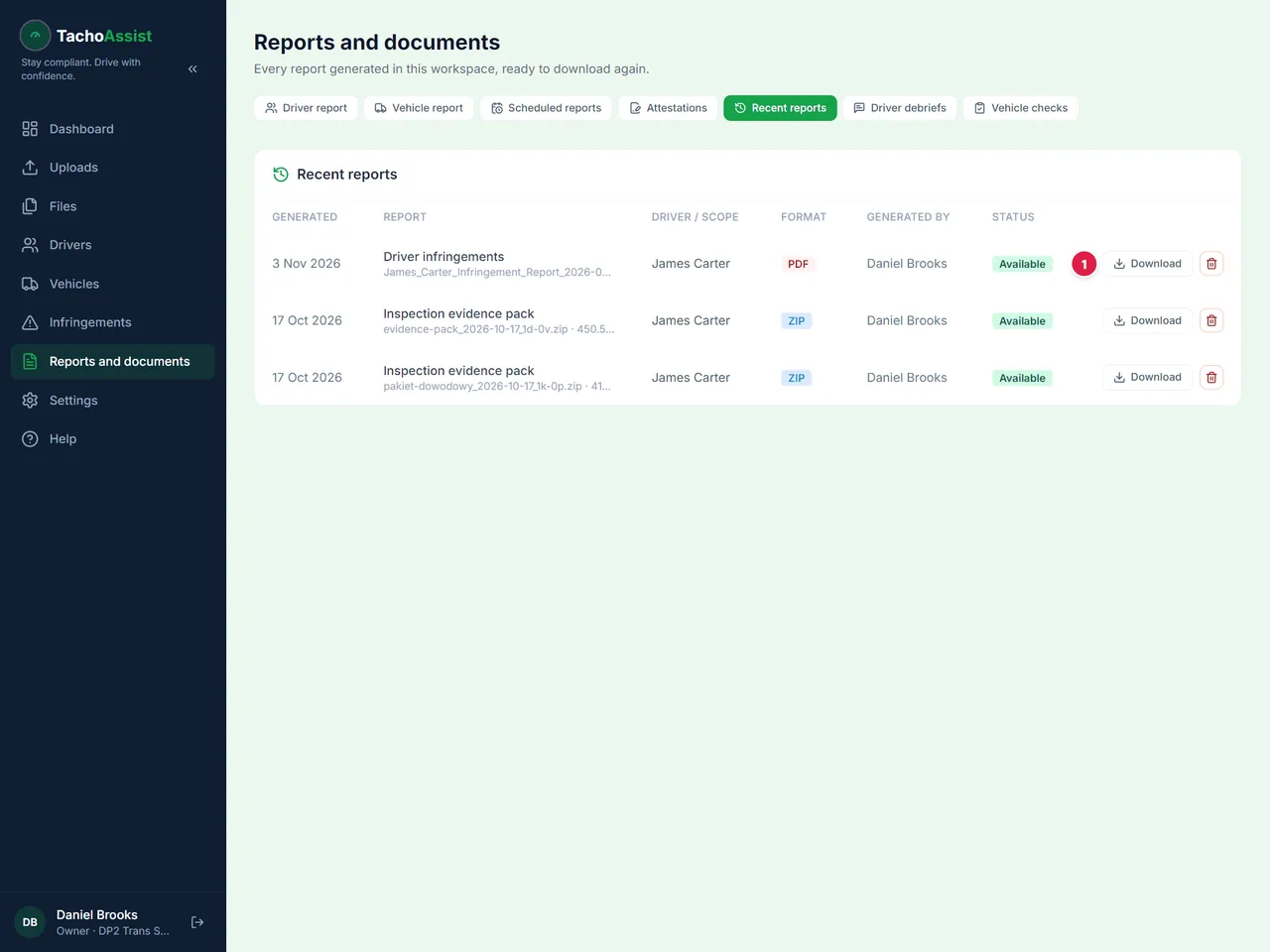
  4. Recent reports

    Recent reports

    Every report can be downloaded again from here.

The same way: Fleet summary report, Missing data report, Working time report, Working time summary and the reports under Vehicle report.

Fill in work time: leave, sickness, a day off

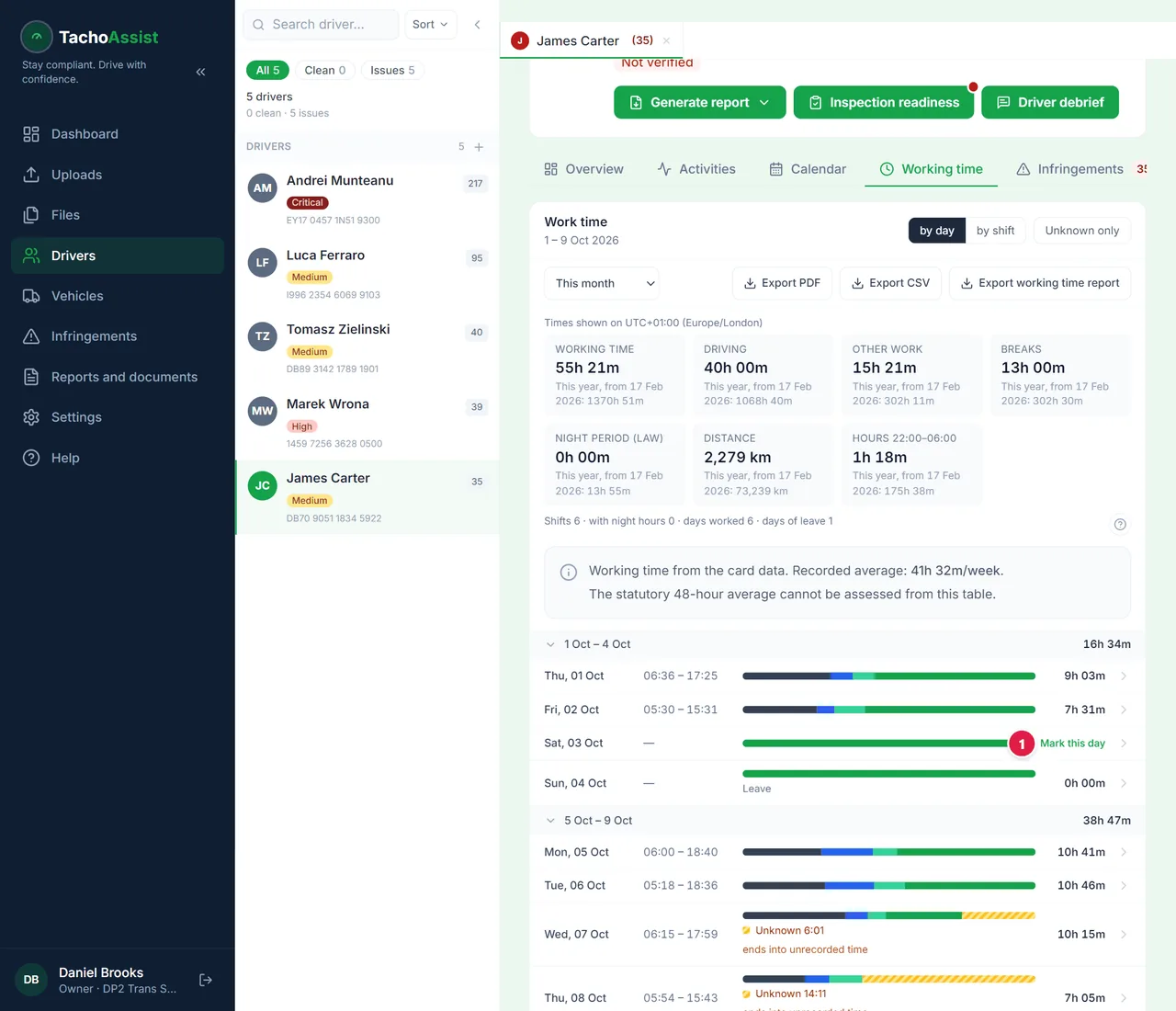
  1. Find the empty day

    Find the empty day

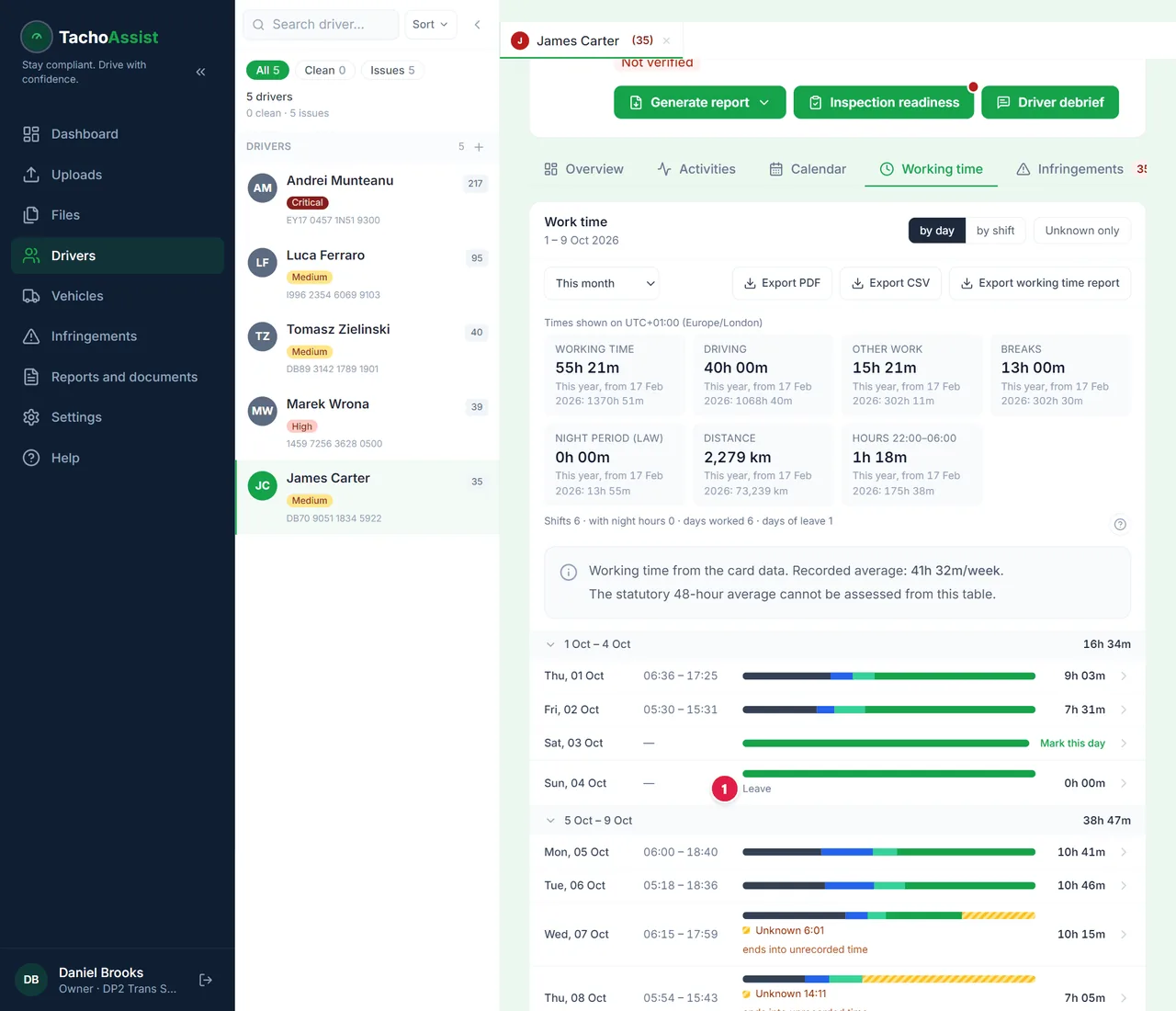
    A day with no card record says “Mark this day”. Click it.

  2. Say what it was

    Say what it was

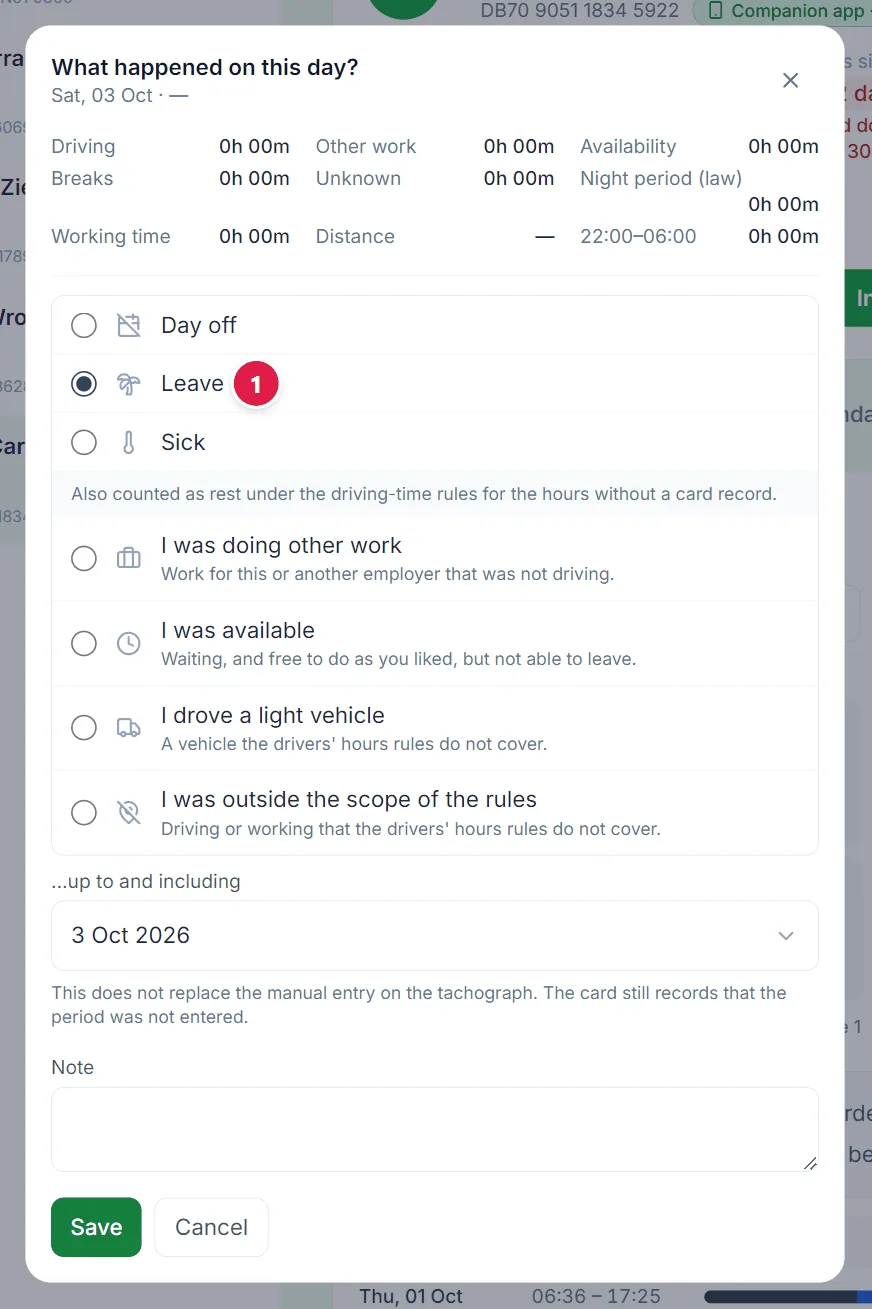
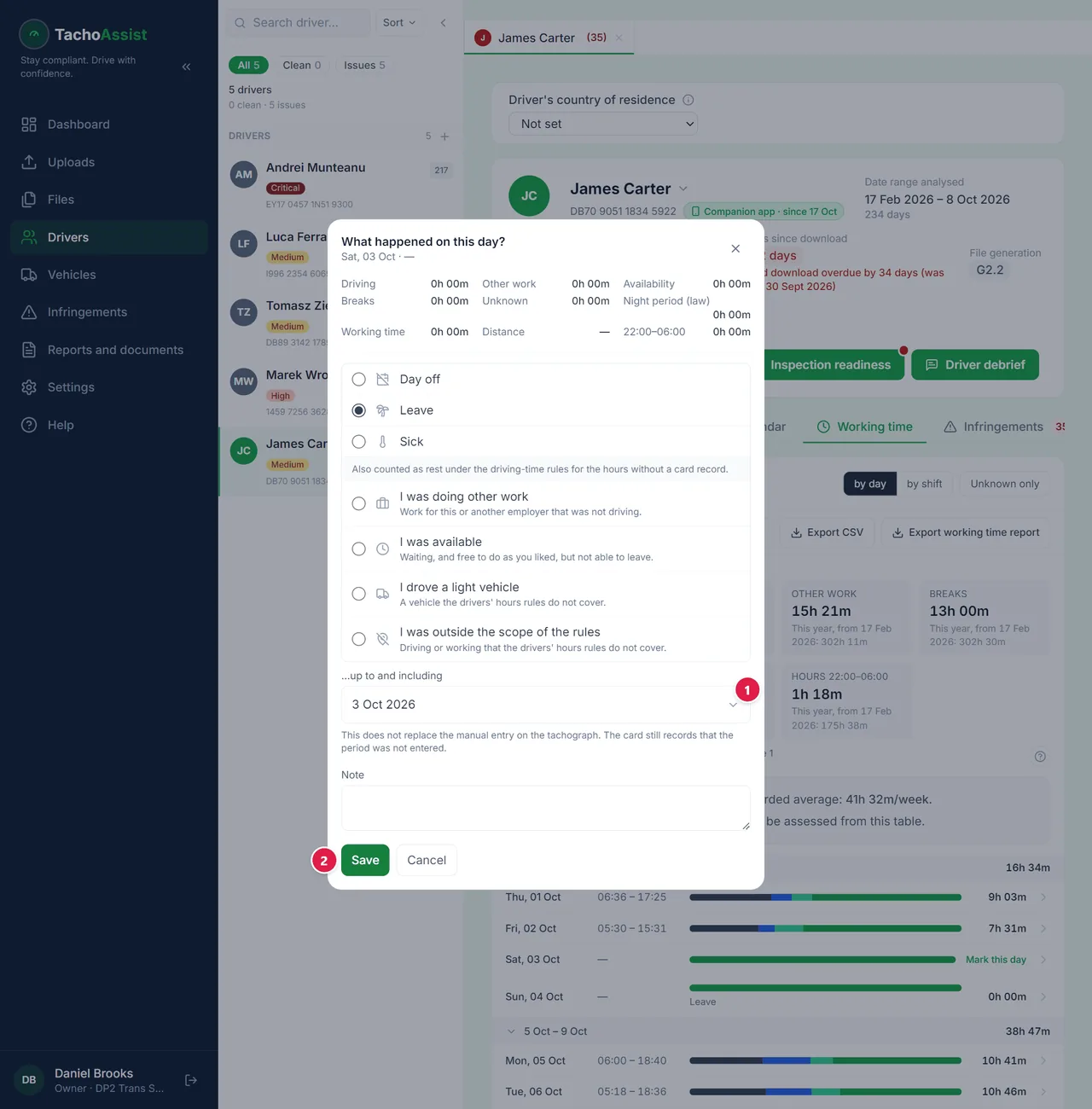
    Pick Day off, Leave or Sick.

  3. Several days at once

    Several days at once

    One answer can cover the empty days that follow.

  4. Done

    Done

    The day now counts in the totals.

Add a note to a day the same way, or use “Add a note for this month”. Weekends and public holidays for everyone at once: Settings › Work time.

A period with no data: the attestation of activities

  1. Find the period

    Find the period

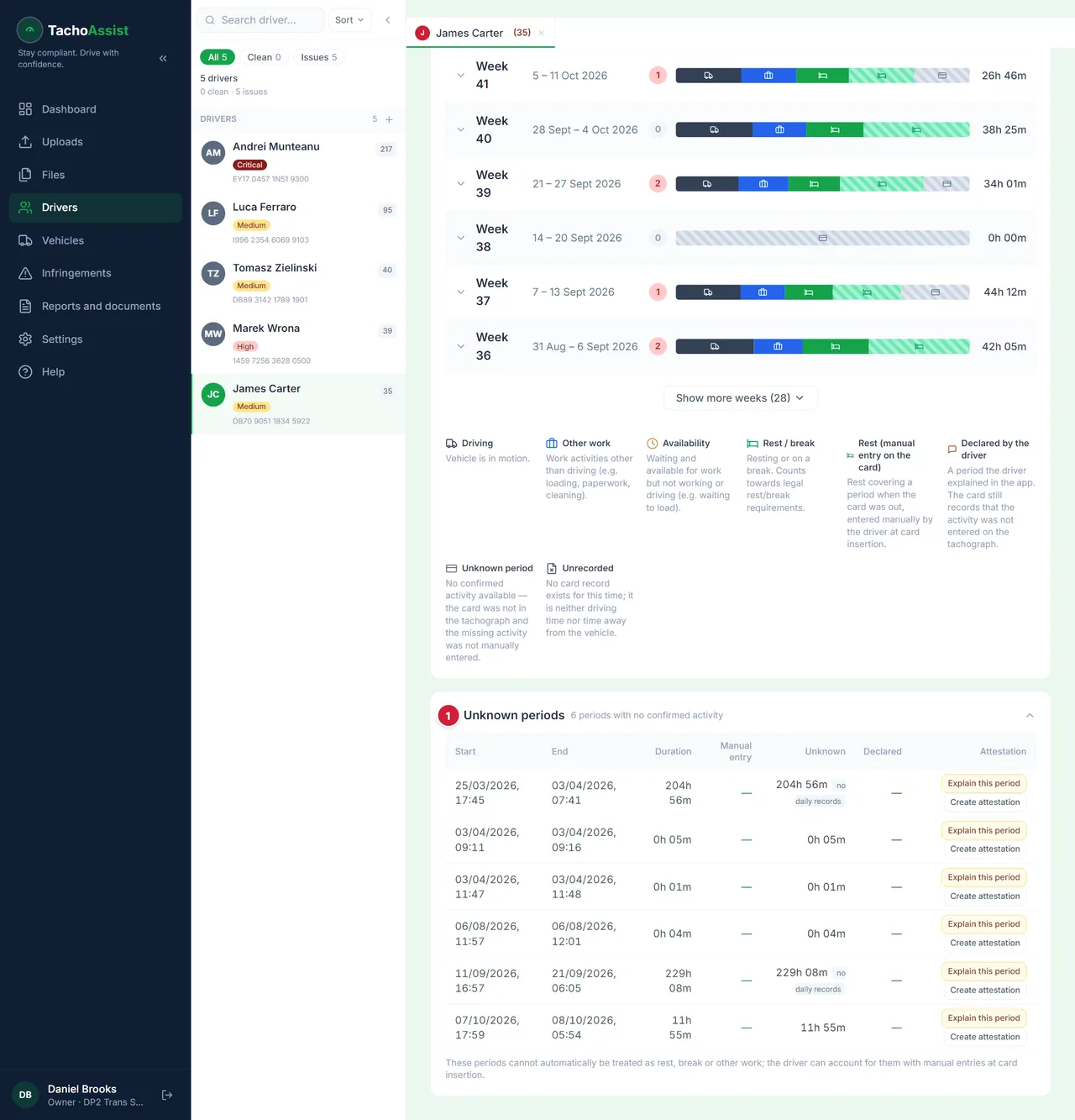
    These are the periods with no confirmed activity — usually when the card was out.

  2. Start the attestation

    Start the attestation

    The form opens with the driver and the period already filled in.

  3. Tick the reason

    Tick the reason

    Tick what the driver was doing. Only the company can choose this.

  4. Print and sign

    Print and sign

    It is saved under Reports and documents › Attestations. Download the official EU form there, print it and sign it.

The same way from Reports and documents › Attestations › Create attestation — pick the period under “Choose a detected period…”.
On a phone

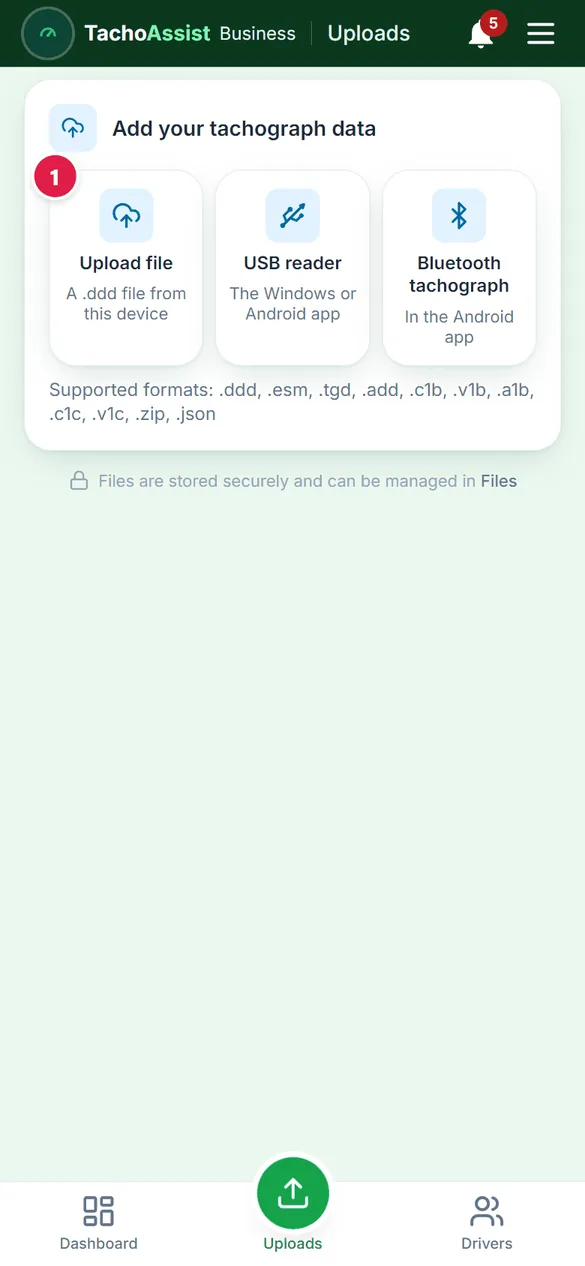
  1. Upload a file from your phone2 steps
  2. A driver on your phone3 steps
  3. Infringements across the fleet3 steps
  4. A report from your phone3 steps
  5. A driver’s work time: leave2 steps

Upload a file from your phone

  1. Add the files

    Add the files

    Pick .ddd files or a ZIP on the phone.

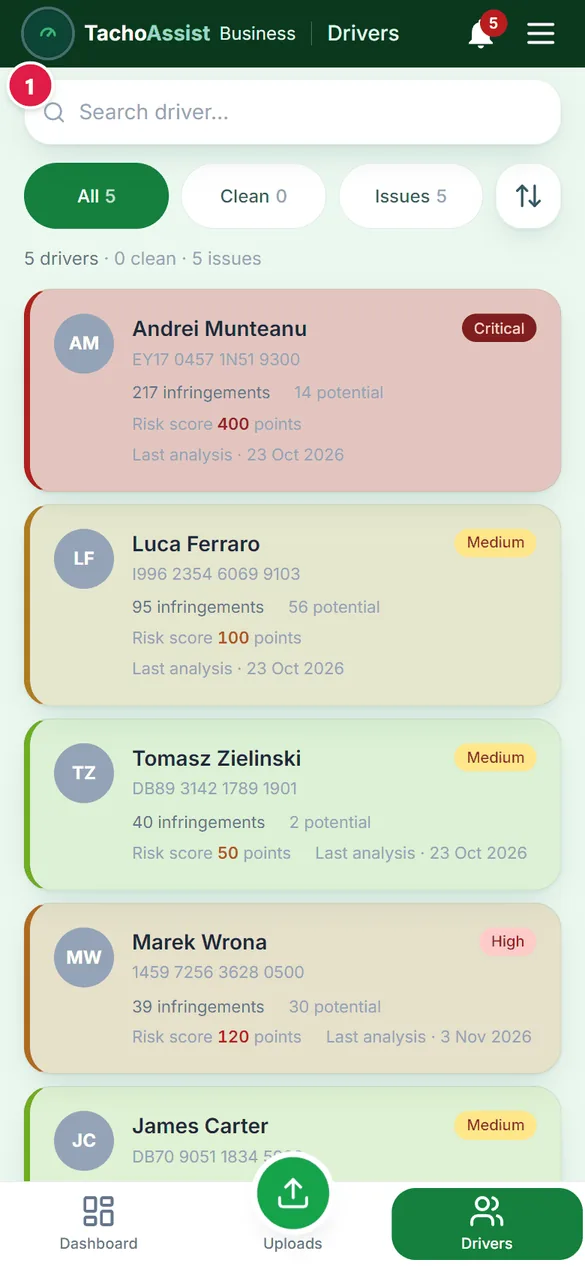
  2. Find the drivers

    Find the drivers

    After the analysis the drivers are on the list.

A USB reader or Bluetooth works through the Card Reader app for Android — see the computer version of Help.

A driver on your phone

  1. Find the driver

    Find the driver

    Search by name and tap the driver.

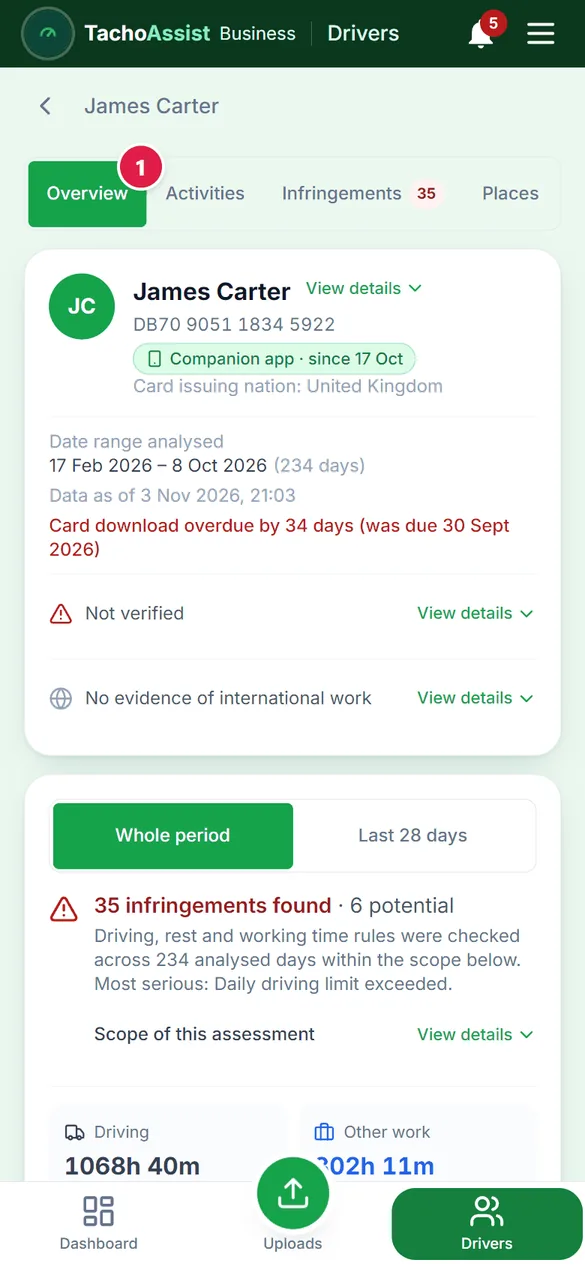
  2. Overview

    Overview

    What was found and the key figures.

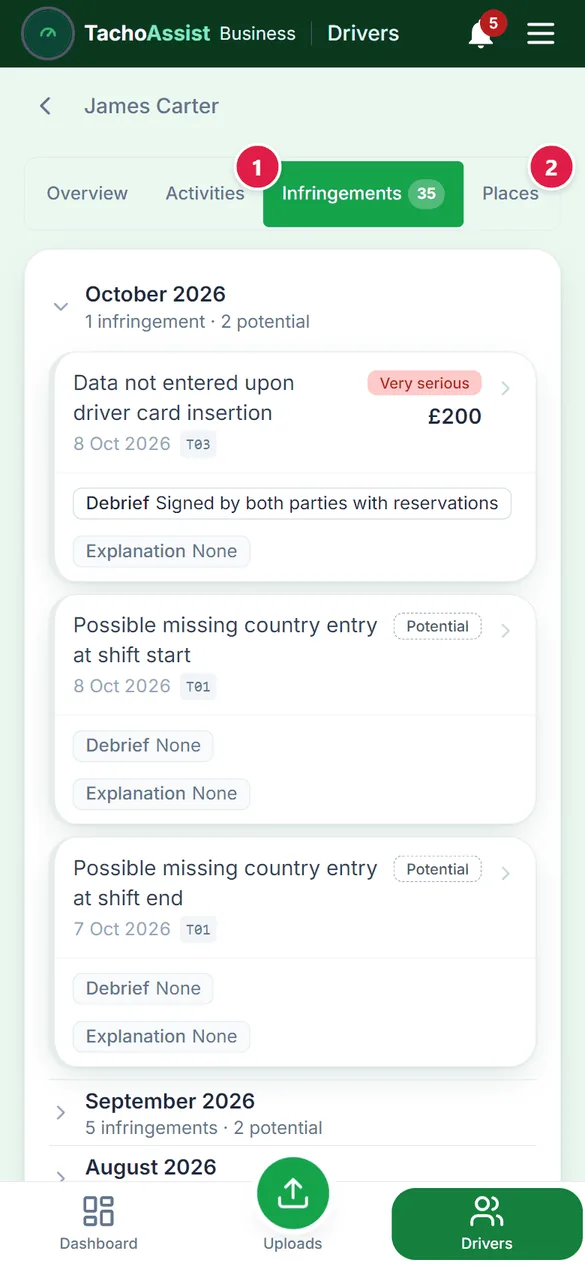
  3. Days, infringements, places

    Days, infringements, places

    The other segments show the days, the infringements and the places.

Infringements across the fleet

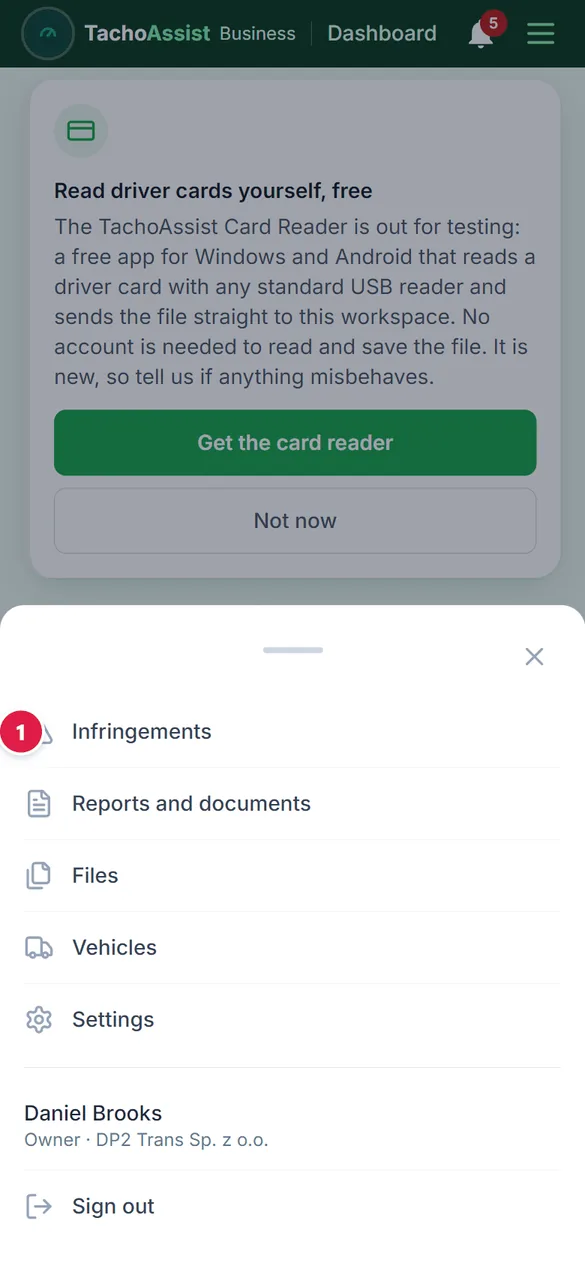
  1. Open the menu

    Open the menu

    The menu button is at the top right.

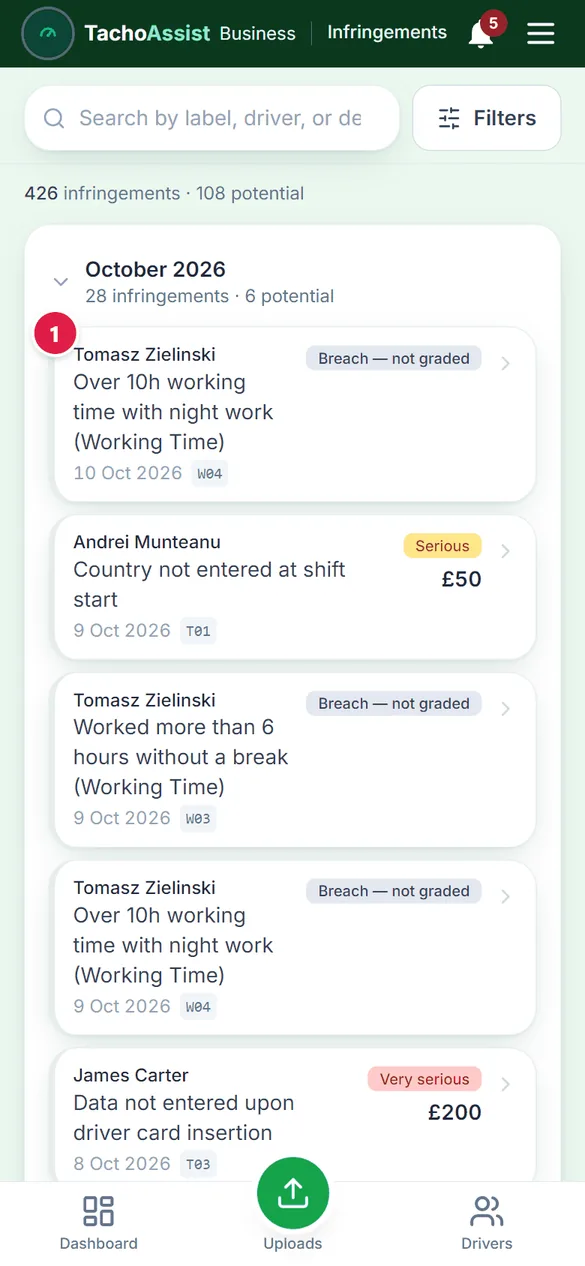
  2. Infringements

    Infringements

    Every driver’s infringements in one list.

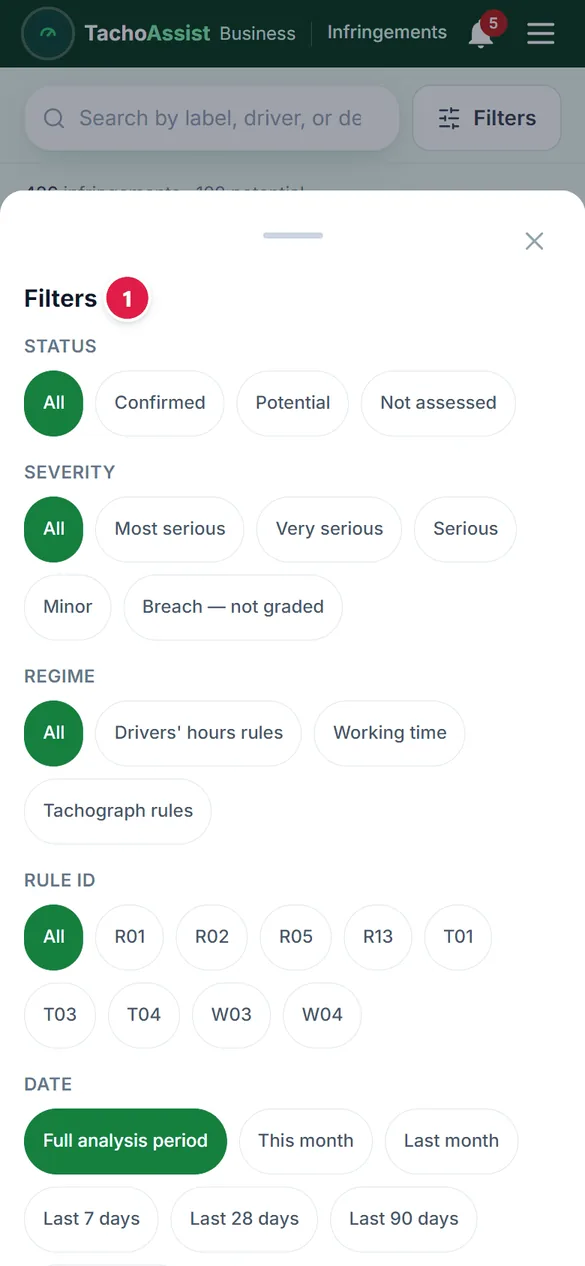
  3. Filters

    Filters

    Narrow the list, for example by severity or status.

A report from your phone

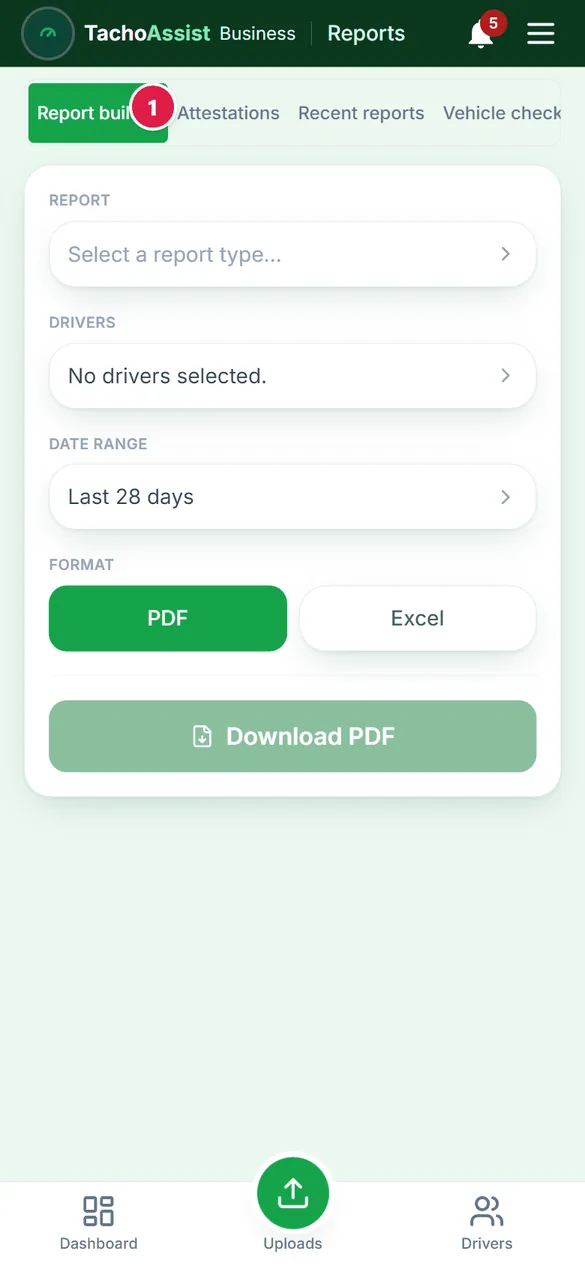
  1. Open the report builder

    Open the report builder

    Reports are in the menu.

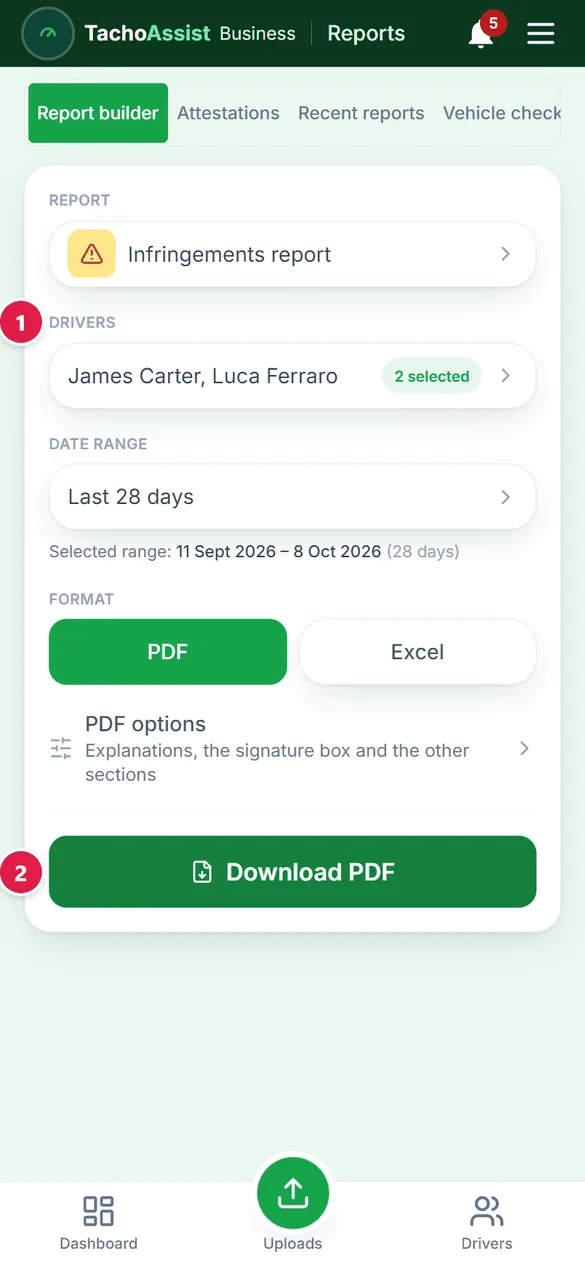
  2. Report, drivers, period

    Report, drivers, period

    Pick the report, the drivers and the period, then download.

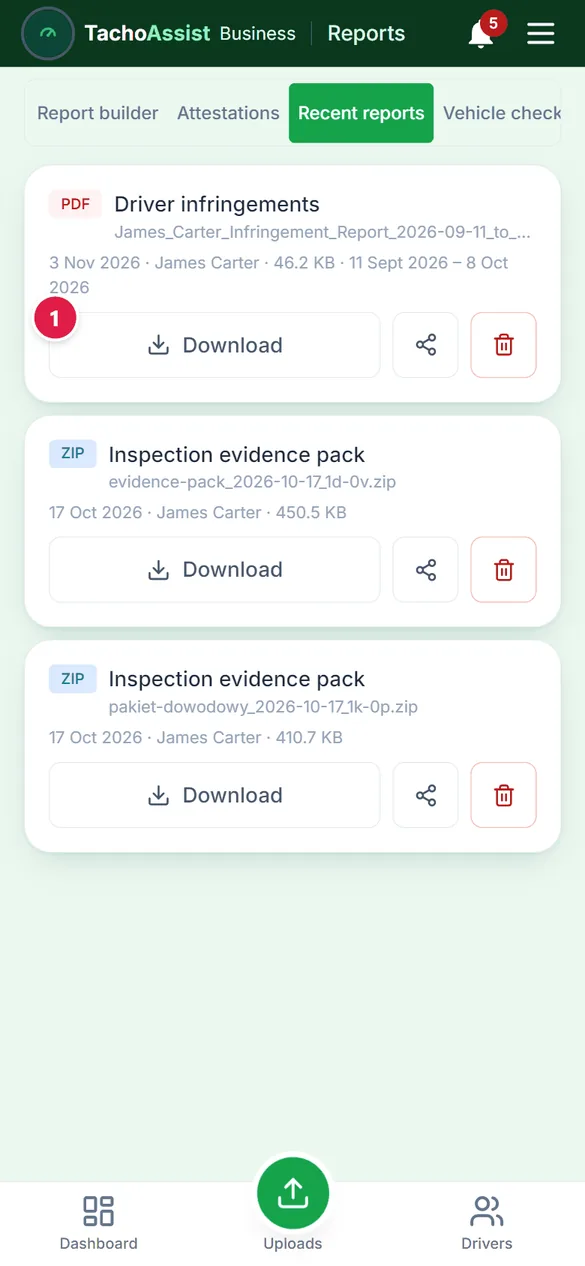
  3. Recent reports

    Recent reports

    Every report can be downloaded again from here.

Every report on the list works the same way; the full options stay on the computer.

A driver’s work time: leave

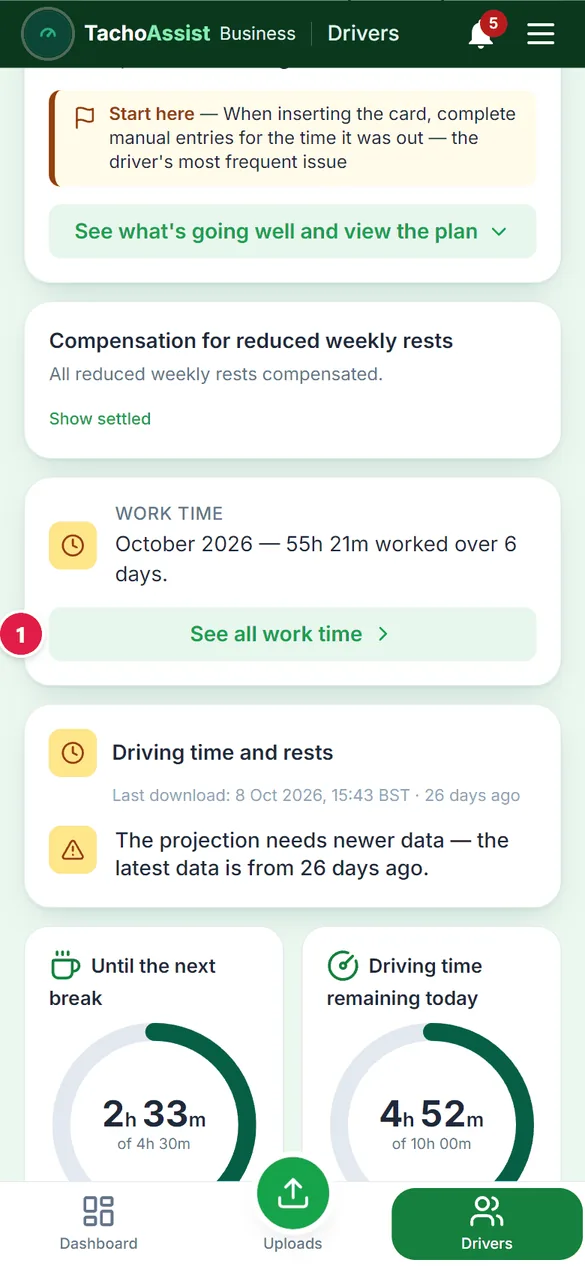
  1. Open the work time

    Open the work time

    Open the driver and their work time card.

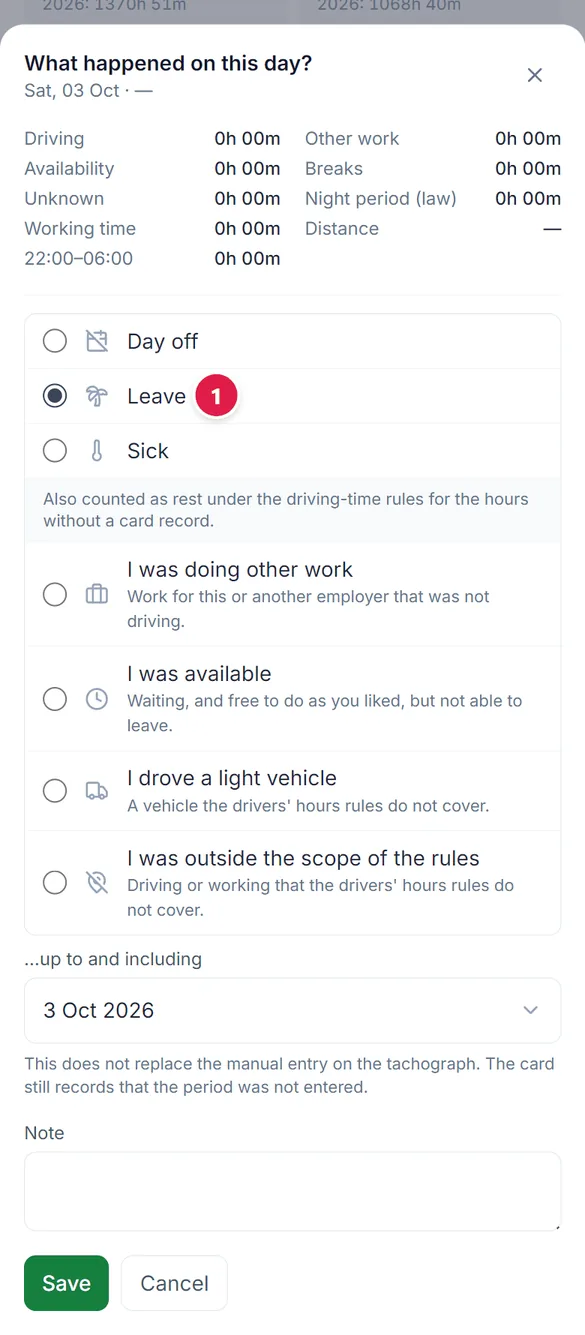
  2. Mark the day

    Mark the day

    Tap a day with no card record, pick Day off, Leave or Sick, then Save.

14 days free

Bring your tachograph compliance work into one workspace.

Register and try TachoAssist without providing a payment card.