Android · Beta
Requires Android 8.0 or newer and Bluetooth Low Energy. The app also continues to read driver cards with a USB reader.
Download for AndroidTachoAssist Card Reader for Android · Bluetooth®
Download your tachograph data to your phone over Bluetooth — no cable, no card reader. A free beta for Android.
Works with
First field confirmation: VDO DTCO 4.1x, driver card, beta4, 14 Oct 2026.
Turn on Bluetooth / pairing in the tachograph menu (your card in slot 1, ignition on).
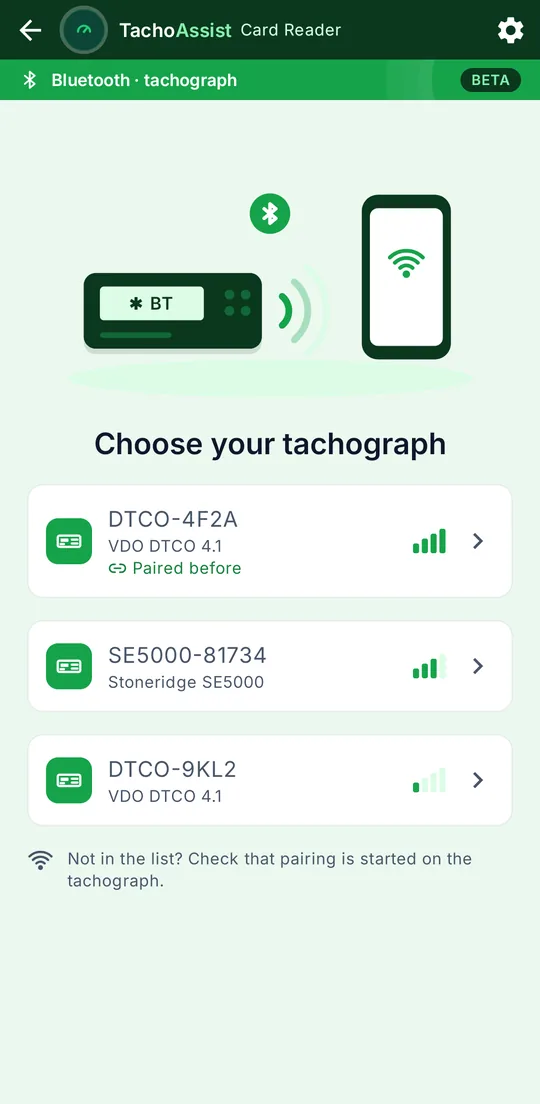
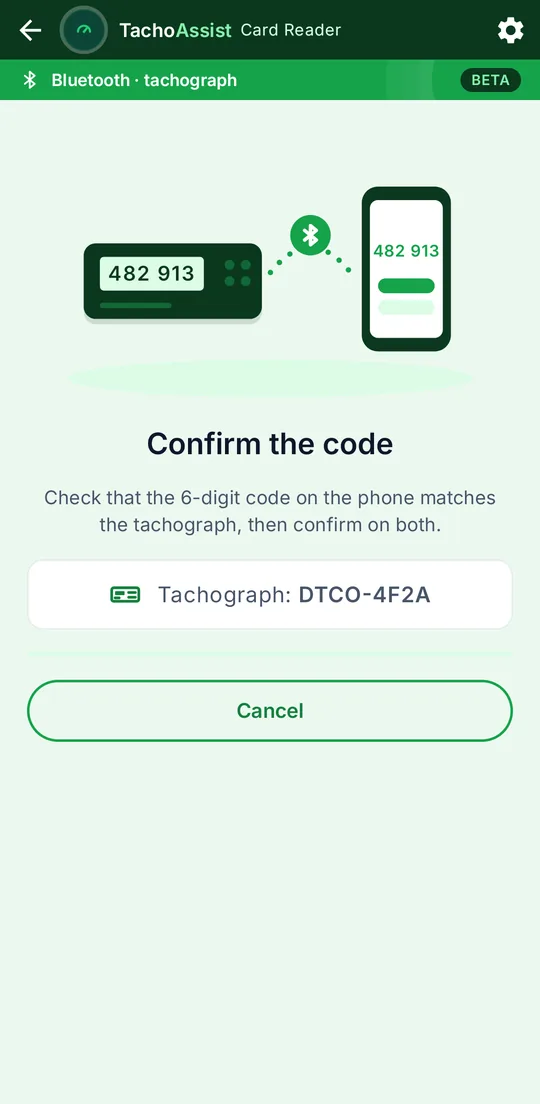
Pick DTCO-… or SE5000-… and confirm the 6-digit code.
Choose the card or vehicle data. The .DDD goes to your workspace or stays on the phone.
The beta app, from finding the tachograph to the uploaded file.
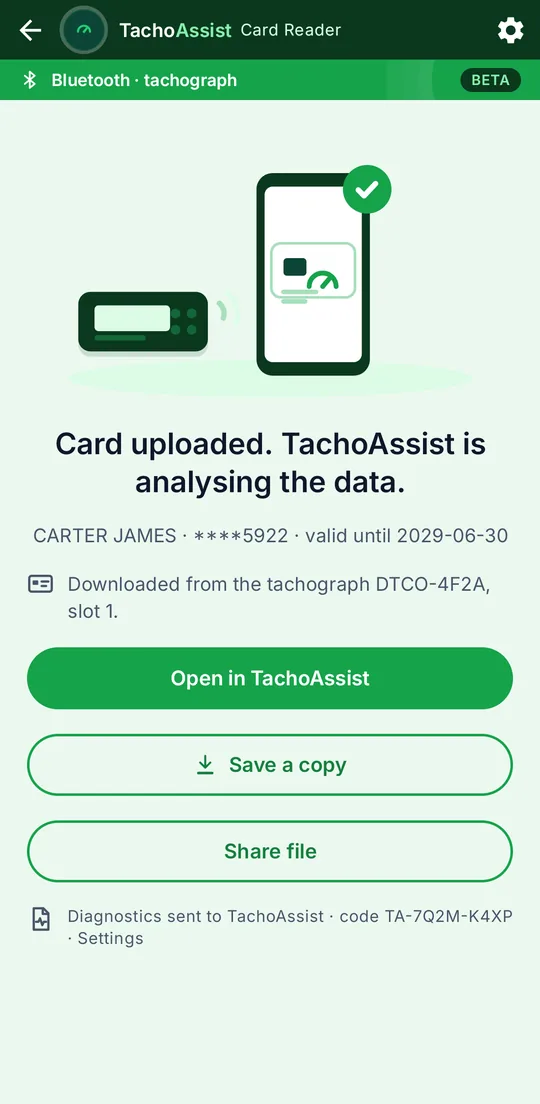
What it does, and what it does not support yet.
The free TachoAssist Card Reader app for Android can now download data directly from a version 2 smart tachograph over Bluetooth. You can download data from the driver card inserted in the tachograph, or from the vehicle unit’s memory with a company card inserted. No card reader or cable is needed. You get the same signed .DDD file as you would with a download key or USB card reader. The file stays on your phone unless you send it to your TachoAssist workspace.
This feature is new and does not yet work with every tachograph. It does not support older version 1 tachographs or models without Bluetooth. You need to be next to the vehicle to download the data. You can still read driver cards with a USB reader as before.
A smart tachograph v2 with Bluetooth, the right card, Android 8.0+, and which software versions work.
Bluetooth download support depends on the tachograph’s software version. The table below shows what we expect based on manufacturers’ documentation and drivers’ reports so far. We will update the last column as drivers confirm which configurations work.
| Tachograph | Software version | What we expect | Confirmed by drivers |
|---|---|---|---|
| VDO DTCO 4.1b | 04.01.41 (printout “V 4141”) | Expected to work | Confirmed 14 Oct 2026 — full card download (4.1a or 4.1b). 22 Oct 2026 — two drivers in Germany, full card downloads on DTCO 4.1 with the Driver app from Google Play and the Card Reader. |
| VDO DTCO 4.1a | 04.01.40 (printout “V 4140”) | Probably works | Confirmed 14 Oct 2026 — full card download (4.1a or 4.1b). 22 Oct 2026 — two drivers in Germany, full card downloads on DTCO 4.1 with the Driver app from Google Play and the Card Reader. |
| VDO DTCO 4.1 | 04.01.26 (printout “V 4126”) | Not expected to work | Not yet |
| Stoneridge SE5000-8.1 (Smart 2) | SWID 2424, 2525 or 2626 | Expected to work | Not yet |
| Stoneridge SE5000-8.1 (Smart 2) | SWID 1619 | Probably works | Not yet |
| Stoneridge SE5000-8.1 (Smart 2) | SWID 1014 or 1214 | Not expected to work | Not yet |
First field confirmation: VDO DTCO 4.1x, driver card, beta4, 14 Oct 2026.
If your version is listed as “Not expected to work”, you can still try it. A report of what happened is just as useful to us. VDO DTCO 4.1 and Stoneridge units with SWID 1214 or 1619 also require a mandatory security update, which a workshop must install by the next periodic inspection. The updated versions are listed in the “Expected to work” rows.
Where to find the software version:
Older units, including VDO DTCO 4.0 and 4.0e, Stoneridge SE5000-8 (Smart 1) and other manufacturers’ version 1 tachographs, have no Bluetooth download interface. Bluetooth adapters that plug into the front socket, such as VDO SmartLink or Stoneridge Tacho Link, use their manufacturers’ own connection systems and do not work with this app.
Chrome and Play Protect warnings, and updating from an older version.
Version 1.1.0-beta7 · 22 October 2026 · Free · no account required.
Requires Android 8.0 or newer and Bluetooth Low Energy. The app also continues to read driver cards with a USB reader.
Download for AndroidThe beta updates your existing TachoAssist Card Reader installation if you have version 1.0.6 or newer, keeping your settings and saved files. If you have the September 2026 test build (version 1.0.5), uninstall it first. Android cannot update that build and will show “App not installed”. Before uninstalling, upload or save a copy of any files still waiting in the app. The app will notify you when the next regular release is available. You can install that release over the beta.
Chrome and Play Protect messages vary between versions. Look for the button names in the steps above; their position and highlighting may differ.
Ignition on, nothing in the front socket, the right card in slot 1.
The first time you download over Bluetooth, you will see the following prompts in order: our short notice about the feature and diagnostic reports (see below); Android’s request for access to Nearby devices; a request to turn on Bluetooth if it is off; and Android’s pairing request with a 6-digit code. On Android 8–11, the permission request is for Location instead of Nearby devices. Location must also be switched on, as these Android versions require it to find Bluetooth devices.
The DTCO menu path, step by step.
On the app’s main screen, tap Download from a tachograph over Bluetooth (beta). The app shows the same steps:
Pairing is linked to the card inserted in the tachograph at the time. If you change cards, for example from your driver card to a company card, remove “DTCO-…” from your phone’s Bluetooth settings and pair again with the new card inserted. With a company card inserted, you can remove an old pairing through entry vehicle → ✱ Bluetooth manage devices. Removing the driver card switches off the tachograph’s Bluetooth; reinserting it switches Bluetooth back on.
Drivers Consent, Bluetooth on, pair a new device.
On the app’s main screen, tap Download from a tachograph over Bluetooth (beta). The app shows the same steps:
The tachograph remembers your phone separately for each card. Next time, connect through SETTINGS → Bluetooth → Paired devices → your phone → Connect to. To start again, remove your phone from Paired devices on the tachograph and remove “SE5000-…” from your phone’s Bluetooth settings.
Driver card or vehicle unit data, how long it takes, where the file goes.
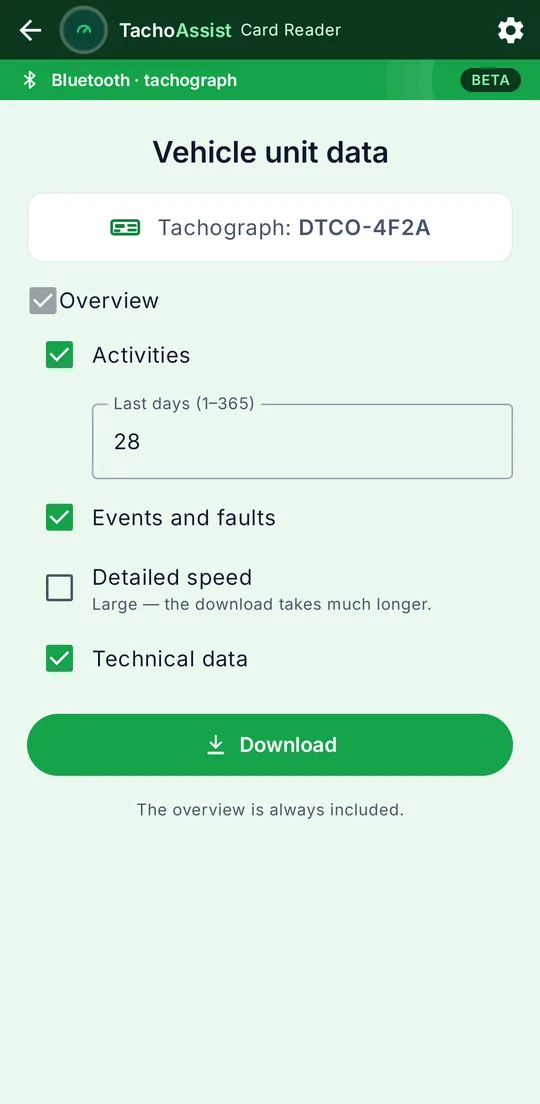
After pairing, the app asks What do you want to download?
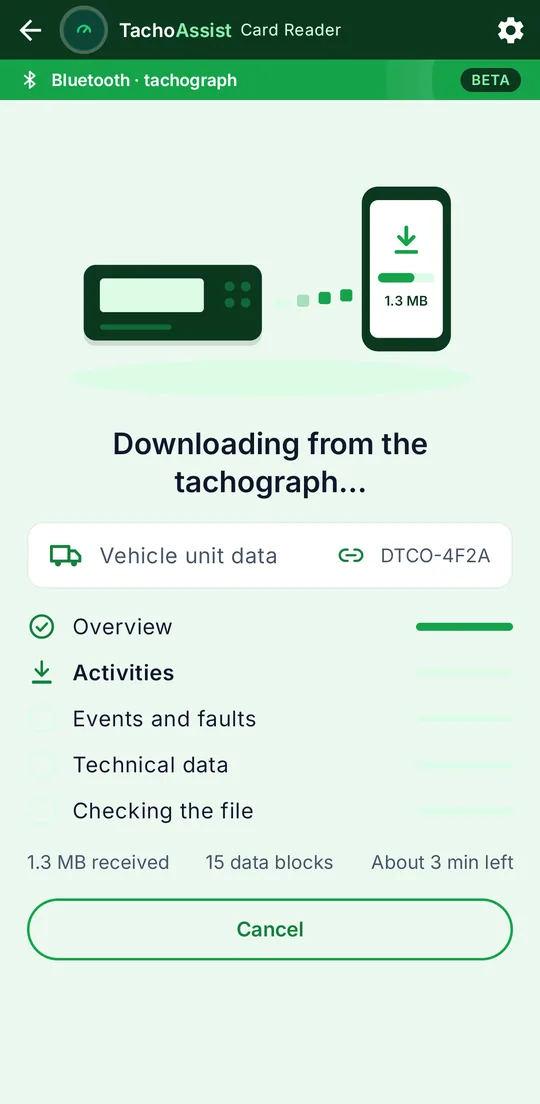
Keep the screen on and stay close to the tachograph. Downloading a driver card usually takes one or two minutes; vehicle unit data can take several minutes.
The app never saves an incomplete download. If the connection drops or the data does not arrive in full, nothing is saved and the app displays a message. Try again. If the tachograph does not provide an optional section, such as detailed speed data, the app saves the available data and shows a note, for example “Detailed speed: not available on this tachograph.”
If you are signed in to TachoAssist, the file is sent to your workspace, just as it is after a USB card read. Otherwise, it is saved on your phone. Vehicle unit analysis is available with TachoAssist business plans. If you use a driver account, the file stays on your phone and the app explains why.
What each screen of the app does.
Screens from the beta app, from finding a tachograph to saving the downloaded file.
The app shows tachographs in pairing mode under their Bluetooth names (DTCO-… or SE5000-…). Tap your tachograph. The same 6-digit code appears on your phone and the tachograph. Confirm it on both devices.
Next time, the tachograph is marked “Paired before”, and you will not need to confirm a code again.
Choose the driver card in slot 1 or slot 2, or vehicle unit data. While downloading a card, the app shows the driver, a masked card number and the number of bytes received. Keep the screen on until the download finishes.
If you are signed in to TachoAssist, the file is sent to your workspace, just as it is after a USB card read. Otherwise, it stays on your phone, ready to share or save.
With a company card inserted in the tachograph, you can choose activities for the last few days, events and faults, technical data and, if needed, detailed speed data. The overview is always included.
The app identifies the vehicle and tells you if the file contains only the selected data rather than the entire vehicle unit memory.
The same download in the web app, in Chrome or Edge on Android.
You can also download data in TachoAssist using Chrome or Edge on an Android phone. With a Driver account, you can download your own card data; with Business, you can download driver card and vehicle unit data. This experimental feature is off by default. Enable it in Settings.
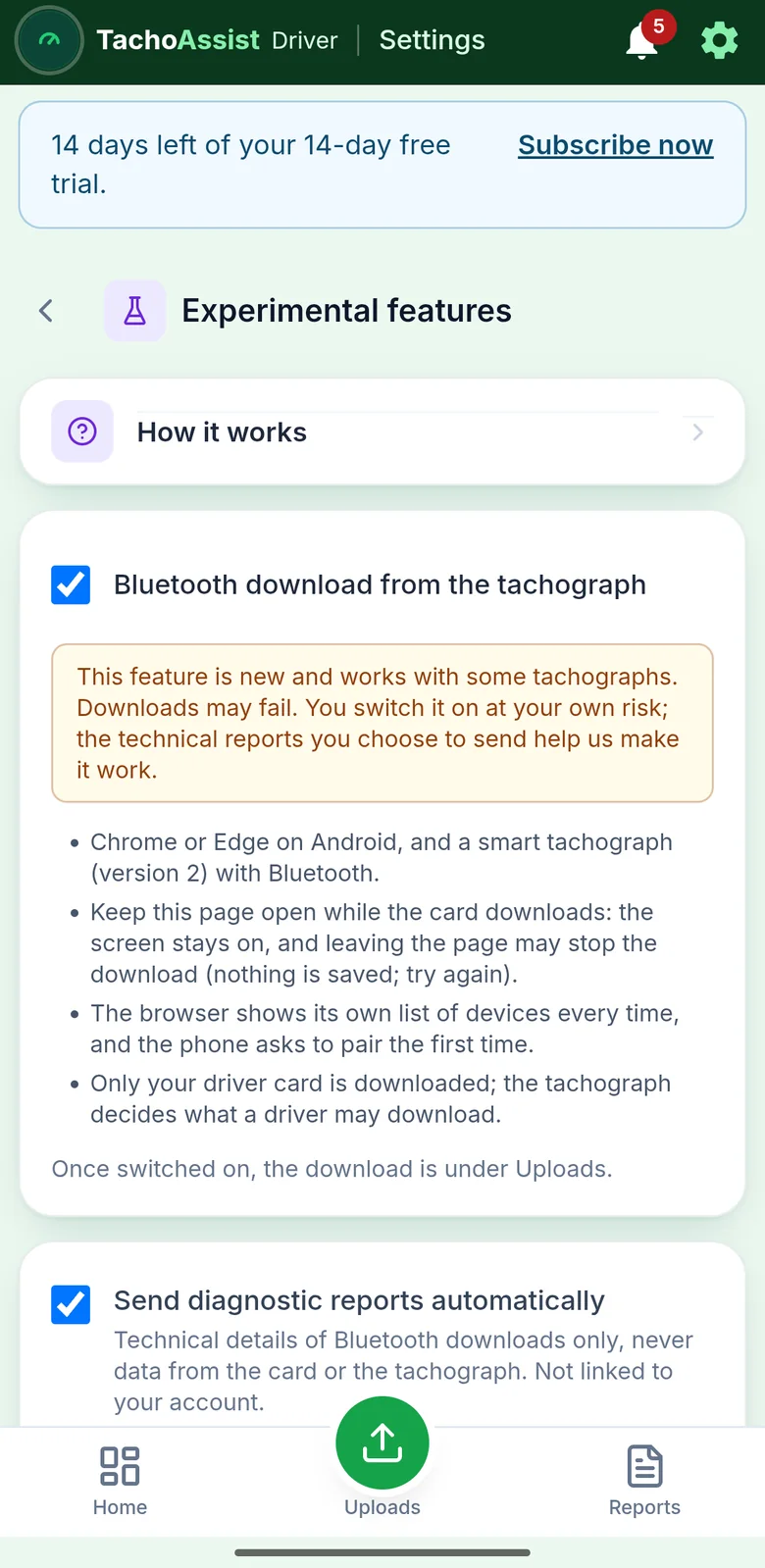
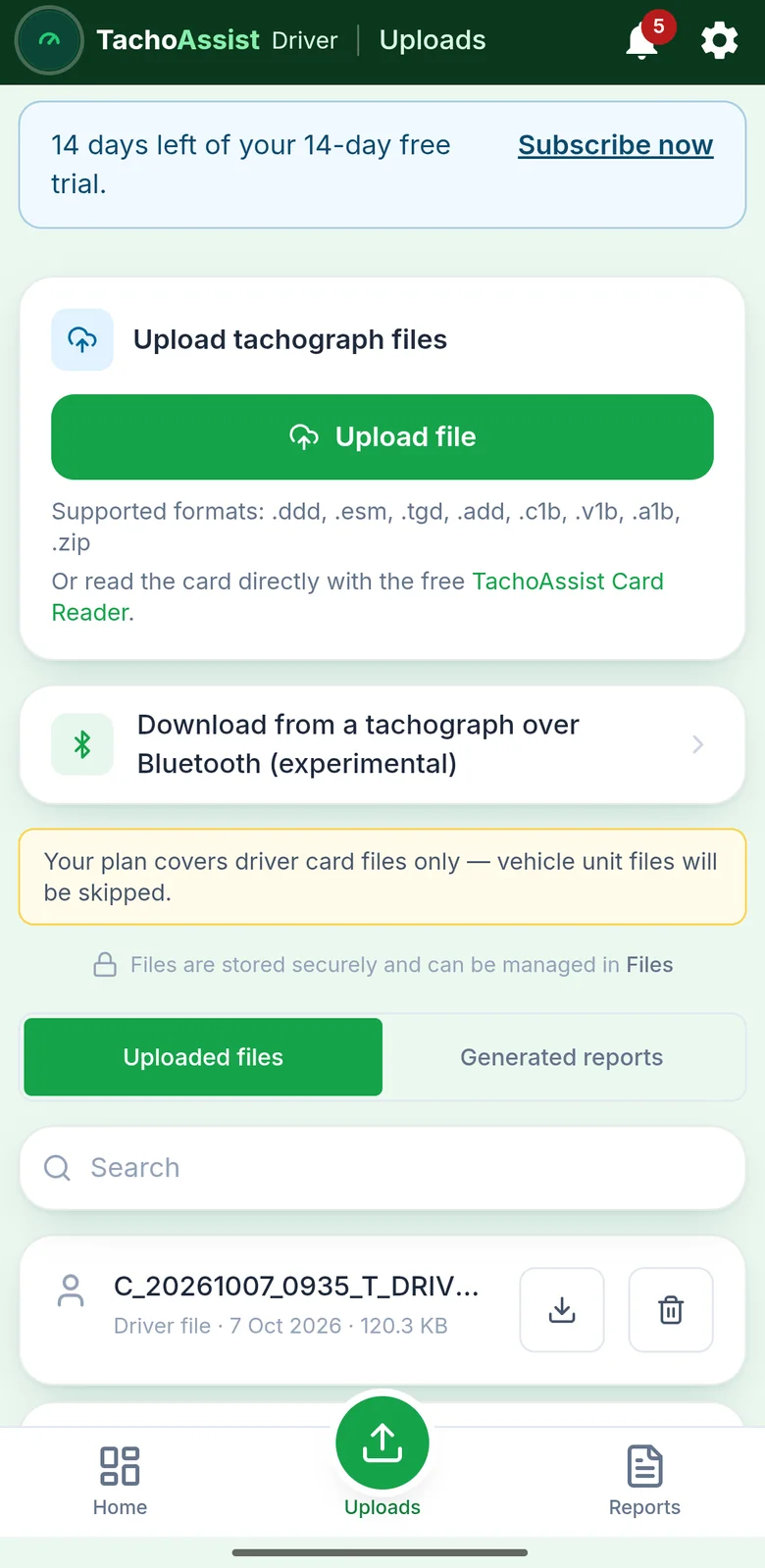
Go to Settings → Experimental features → “Bluetooth download from the tachograph”. Read the notice first: this is a new feature that works with some tachographs, and you enable it at your own risk. Once enabled, it is available under Uploads.
The browser shows its own list of devices every time, and the phone asks to pair the first time. On a Driver account you download your own driver card; on a Business account you choose the driver card in slot 1 or 2 or the vehicle unit data (a company card must be in the tachograph).
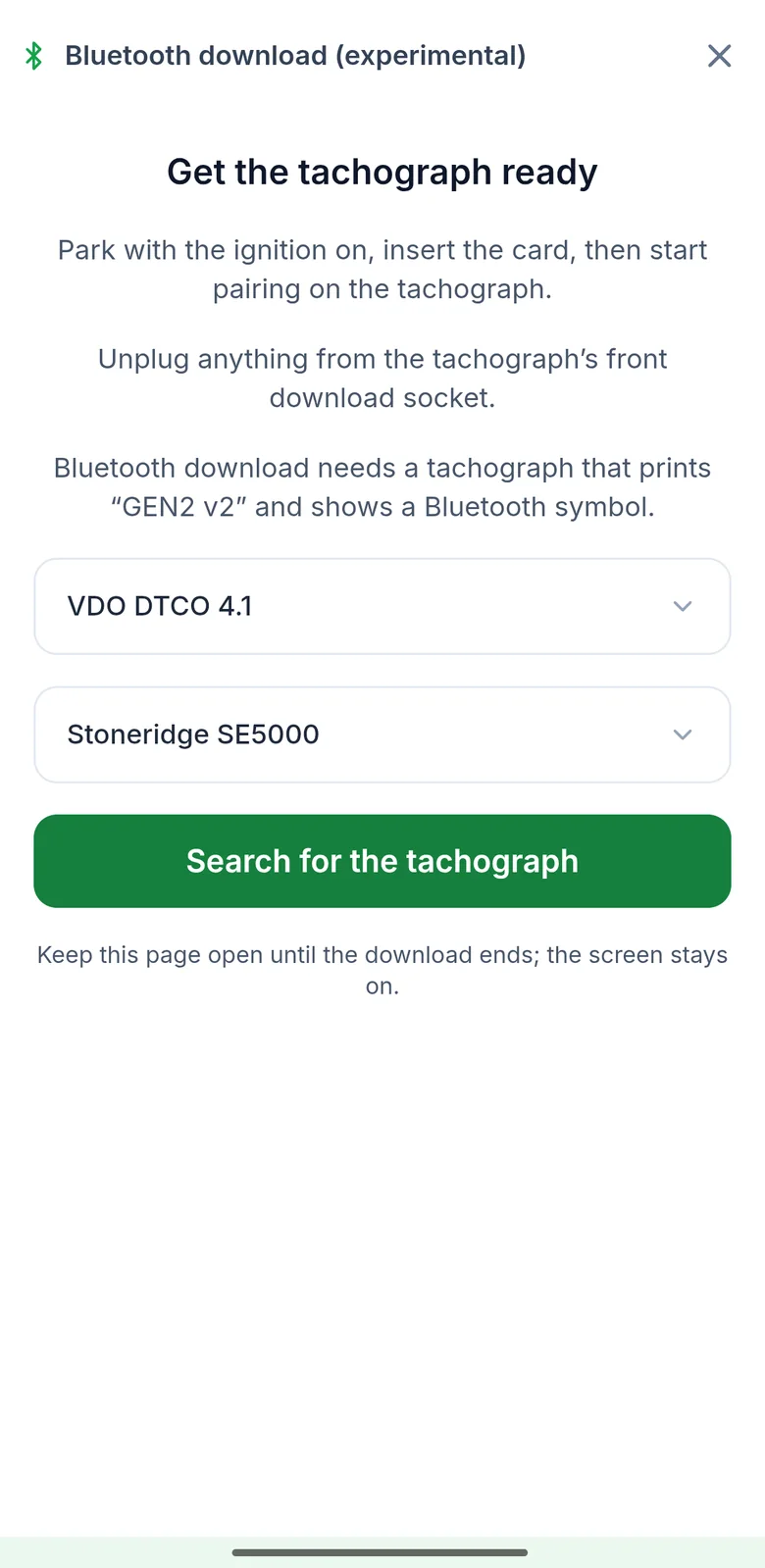
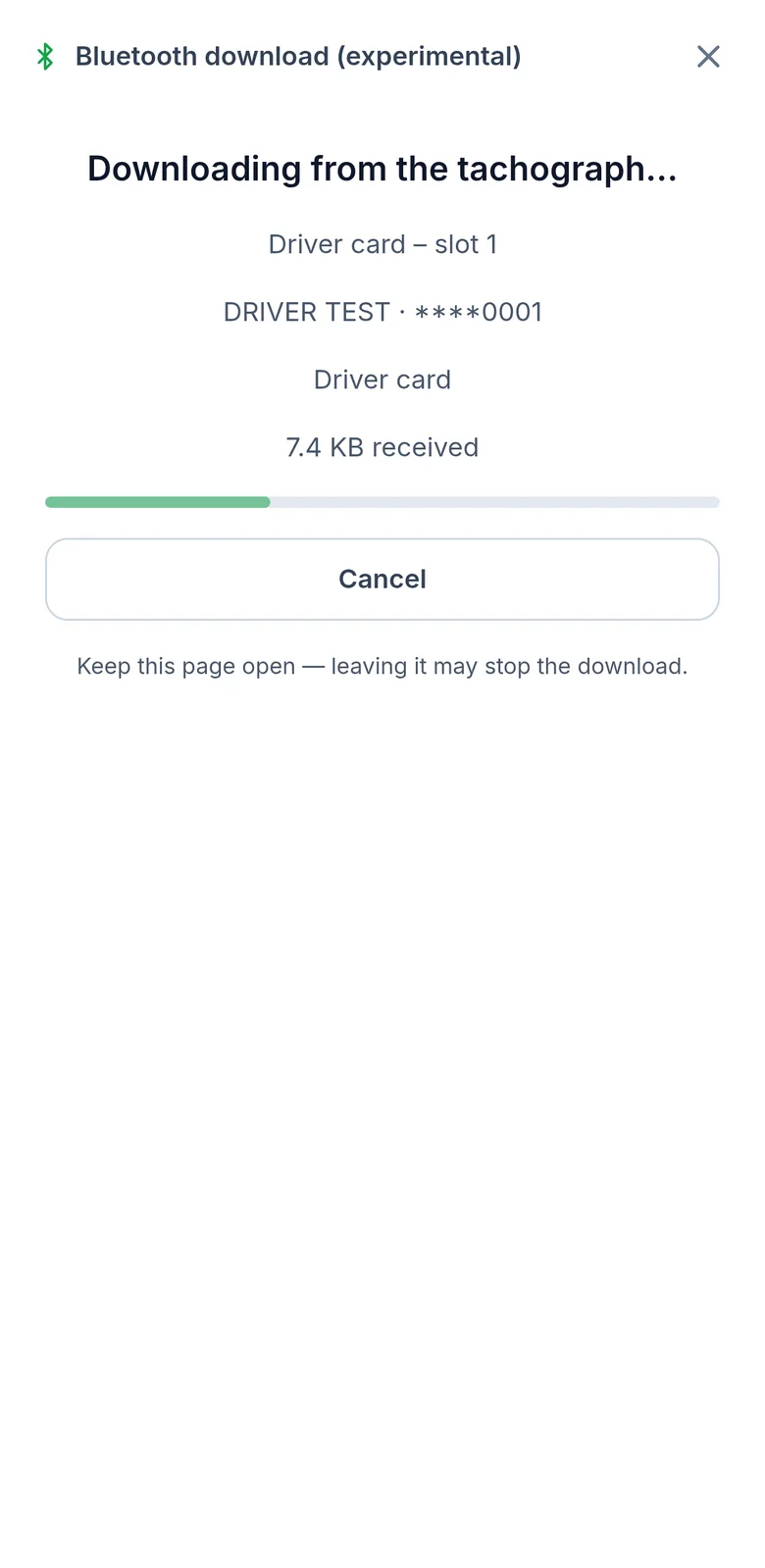
Prepare the tachograph, search for it, confirm the code and choose the card slot. The downloaded card data is then sent to your workspace, just as it is after a USB card read.
The downloaded file remains available on the screen. Retry the upload or save a copy before leaving the page.
Try again, ignition off and on, reset or re-pair. Never cut the power.
The app explains the problem in plain language, for example “The tachograph refused the download. Pair again while the card you want to download is in the tachograph, and check that the card releases ITS data.” Then try the following steps in order:
Do not cut the vehicle’s main power to “reset” the tachograph. An interruption of the power supply is recorded as an event in the tachograph and can be seen at a roadside check. If you ever do it as a last resort, note the time and keep a printout.
What a report contains, and what it never contains.
The first time you open Bluetooth downloading, the app explains the feature and asks whether you want to send diagnostic reports. There are two equally prominent buttons: Send reports and continue and Continue without sending. Downloading works the same whichever you choose.
Diagnostic reports help us make downloading work with more tachographs. A report contains:
A report never contains the driver’s name, card number, vehicle registration, VIN, location, or any data from the card or the tachograph file. It is not linked to your TachoAssist account, even when you are signed in, and it is deleted after 90 days.
When a report is sent, the app shows its code, for example TA-7K2M-Q9WD. Full details are in the privacy policy.
Reddit or e-mail: the report code and the tachograph version are enough.
Whether it worked or not, we want to know. Post in the Reddit thread where you found this page, or write to contact@tachoassist.com:
Never post a .DDD file, printout, photo of a card or vehicle registration number publicly. The report code is enough for us to find your report. If we need the file, we will ask for it by email.
Parked vehicle only, your own data only, trademarks.
Use the app only while the vehicle is parked. Download only data you are entitled to download: your own driver card, or your company’s vehicle data with your company card.
This experimental feature is available as a free beta, with no guarantee that it will work with a particular tachograph. A complete file saved by the app is the same file the tachograph would provide to a download key. Check that your files have been received before relying on the download to meet your deadlines.
Bluetooth® is a registered trademark of Bluetooth SIG, Inc. VDO and DTCO are trademarks of Continental Automotive Technologies GmbH; Stoneridge and SE5000 are trademarks of Stoneridge, Inc. TachoAssist is not affiliated with or endorsed by these companies. We use their names only to identify the tachographs the app works with.